
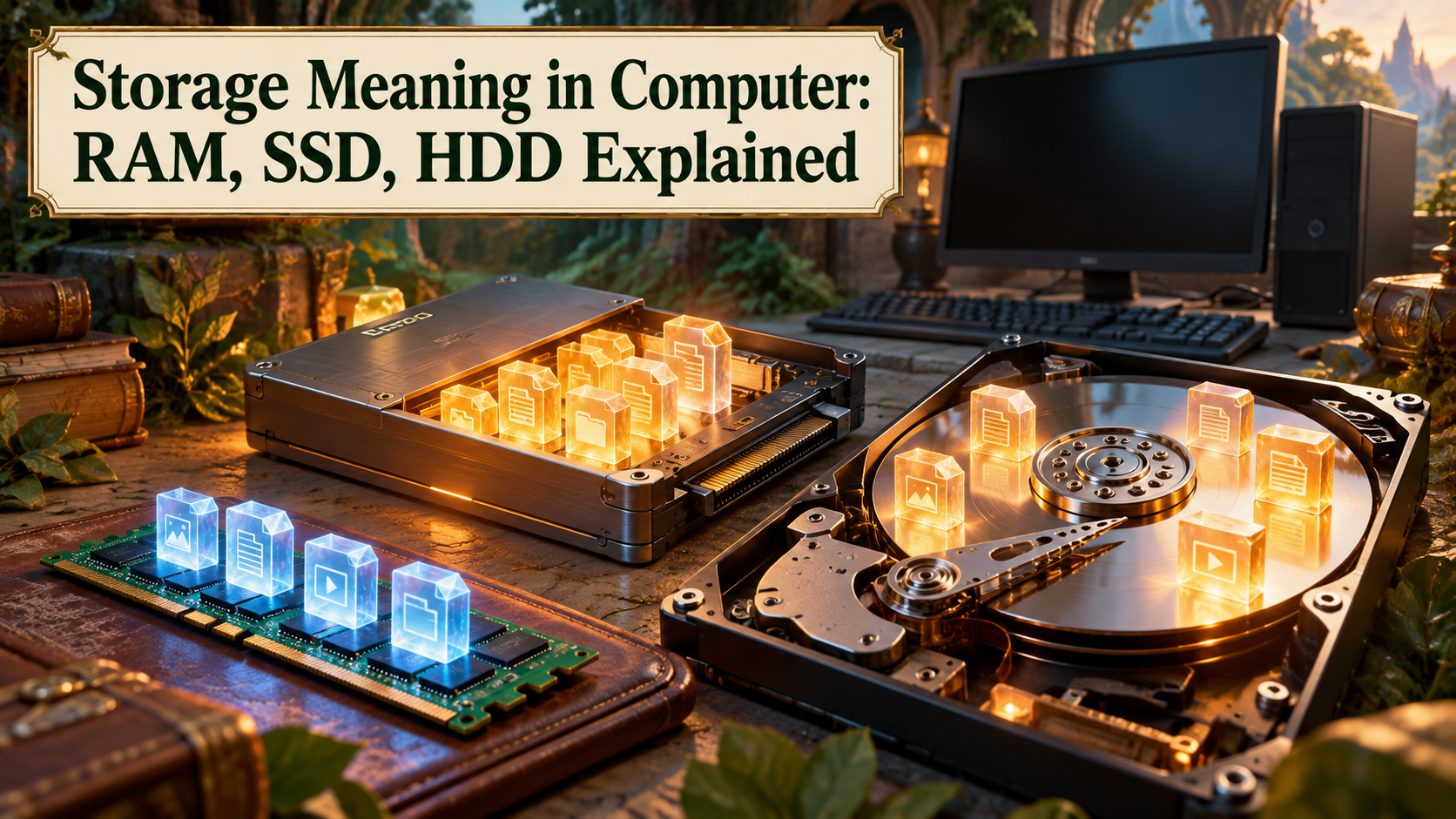
Computer storage is the hardware and software system that records digital data so an operating system, application, document, photo, or video remains available after the computer is turned off. In ordinary usage, “storage” usually means non-volatile secondary storage, such as an HDD, SATA SSD, NVMe SSD, USB drive, NAS, or cloud service, rather than temporary RAM.
Key Facts at a Glance
- Computer storage preserves data without continuous electrical power, while RAM loses active contents when power is removed.
- An HDD stores bits as magnetic patterns, while an SSD stores bits as electrical charge in NAND flash cells.
- M.2 describes a physical form factor, whereas NVMe describes a storage protocol; an M.2 drive can use SATA or NVMe.
- Sequential speed matters for large files, but random access latency and IOPS often matter more for booting and opening applications.
- A new internal drive may require initialization, partitioning, formatting, and a drive letter before an operating system can use it.
- Storage capacity is not a backup. A separate copy protects data from deletion, hardware failure, theft, and ransomware.
What Does Storage Mean in a Computer?
Computer storage means the systems that encode, retain, organize, and retrieve digital information. Storage includes the physical medium, storage controller, connection interface, firmware, file system, and sometimes a remote service that presents capacity as a usable virtual drive.
The most important property is persistence. A document saved to an SSD remains there after shutdown, unlike unsaved information held only in RAM. “Permanent” is a practical term rather than a guarantee: every storage medium can fail, become corrupted, or lose access through accidental deletion.
Storage has two related meanings. In a hardware specification, “512 GB storage” normally means the capacity of an internal SSD or hard drive. In a broader architecture discussion, storage can include removable media, network shares, object storage, backup systems, and cloud platforms such as Google Drive, OneDrive, or Amazon S3.
Storage Versus Memory
Storage and memory are different resources with different jobs. Storage retains programs and files for later use, while memory gives the processor fast temporary workspace for currently running programs.
| Characteristic | RAM | CPU cache | Internal SSD | HDD |
|---|---|---|---|---|
| Data retention without power | No | No | Yes | Yes |
| Typical consumer capacity | 8-64 GB | 1-128 MB | 500 GB-4 TB | 1-24 TB |
| Typical access latency | 50-100 ns | Under 10 ns | 50-200 µs | 5-15 ms |
| Moving parts | None | None | None | Spinning platters and actuator |
| Main purpose | Active programs | Frequently reused instructions | Operating system and files | Bulk capacity and archive copies |
A computer usually needs both. A larger SSD does not replace adequate RAM, and adding RAM does not create more room for photos or applications. When RAM fills, an operating system may use a page file or swap area on storage, but that workaround is far slower than physical memory.
How Does Computer Storage Work?
Computer storage works by translating application-level files into binary data, mapping that data to physical locations, and returning the requested bytes through the storage controller and system bus. The operating system coordinates the process through a file system, while the device firmware manages its medium.
A typical save operation follows this path:
- An application sends a write request to the operating system.
- The file system, such as NTFS, APFS, ext4, or exFAT, assigns file metadata and logical blocks.
- The operating system sends commands through an interface such as SATA, USB, or PCIe.
- The storage controller converts logical block addresses into physical locations.
- The medium records the bits using magnetic states, flash-cell charge levels, or another technology.
- The operating system confirms completion and updates file metadata.
Opening a file reverses the sequence. The controller retrieves the required blocks, the operating system places active data in RAM, and the CPU processes instructions or application content from memory.
How Are Bits Stored?
Digital storage represents information with bits, each having a value of 0 or 1. Eight bits form one byte, and larger units usually follow binary or decimal conventions depending on the manufacturer and operating system.
An HDD writes magnetic orientations to sectors on spinning platters. A NAND flash SSD changes the electrical charge held in microscopic cells. Optical media uses physical differences in reflective surfaces, although optical discs are now less common for everyday computer storage.
Modern flash cells can store multiple bits per cell:
- SLC stores one bit per cell.
- MLC stores two bits per cell.
- TLC stores three bits per cell.
- QLC stores four bits per cell.
Higher bit density lowers the cost per gigabyte, but it generally reduces write endurance and can complicate sustained-write performance. A controller uses error correction, wear leveling, and spare cells to maintain reliability.
What Does a File System Do?
A file system organizes raw storage into named files, folders, permissions, timestamps, and logical blocks. NTFS is common on Windows, APFS is standard on modern macOS systems, ext4 is widely used on Linux, and exFAT is useful for cross-platform removable drives.
A file system is not the storage medium. Formatting an SSD creates a file-system structure on the medium, but formatting does not repair failing hardware and normally removes the existing directory structure. File systems also differ in support for encryption, journaling, file size, permissions, and recovery tools.
What Are the Main Types of Computer Storage?
The main types of computer storage are magnetic, flash-based, removable, network-attached, and cloud-based storage. These categories describe both the physical technology and the way a user accesses the data.
Hard Disk Drives
A hard disk drive uses spinning platters, magnetic surfaces, a read/write head, and an actuator arm. HDDs typically provide the lowest cost per terabyte, making them useful for large media libraries, local backups, surveillance recordings, and infrequently accessed files.
The mechanical design creates latency. The drive must rotate a platter and move its head to the correct track, so small scattered reads are much slower than sequential reads. Physical shock can damage a powered HDD, and operating noise, vibration, and power consumption are higher than with flash storage.
SATA Solid-State Drives
A SATA SSD uses NAND flash but communicates through the older Serial ATA protocol. A 2.5-inch SATA SSD commonly reaches about 500-560 MB/s of sequential transfer speed because the SATA III interface limits throughput.
SATA SSDs remain practical for older desktops, laptops, and inexpensive upgrades. They provide much lower latency than HDDs, use less power, and tolerate movement better, but they cannot approach the bandwidth of a PCIe NVMe drive.
NVMe SSDs
An NVMe SSD uses the Non-Volatile Memory Express protocol over PCI Express. Most consumer NVMe drives use the M.2 2280 form factor, although U.2, add-in-card, and other formats also exist.
PCIe generation and lane count determine the connection ceiling. Typical manufacturer-rated sequential speeds are approximately 3,000-3,500 MB/s for PCIe 3.0 x4, 5,000-7,500 MB/s for PCIe 4.0 x4, and 10,000-15,000 MB/s for some PCIe 5.0 x4 drives.
A high sequential rating does not mean every program becomes equally faster. Web browsing, office applications, and many games are often limited by CPU work, software behavior, or small random requests rather than maximum transfer bandwidth.
External, Network, and Cloud Storage
External storage connects through USB, Thunderbolt, or a removable card interface. An external SSD is convenient for a laptop, photo workflow, or off-site copy, while an external HDD offers more capacity for less money.
A NAS, or Network Attached Storage system, places one or more drives behind a network connection. NAS devices can provide shared folders, snapshots, media serving, and redundancy, but RAID is not a backup because accidental deletion or ransomware can affect every mirrored copy.
Cloud storage presents remote capacity through an internet connection. The physical data still resides on servers in data centers, where providers manage hardware, replication, access control, and billing. Cloud access depends on bandwidth, latency, account security, and the provider’s retention policy.
Which Storage Type Should You Choose?
The best storage type depends on workload, capacity, device compatibility, and the cost of losing access. For most modern computers, an NVMe SSD is the strongest primary drive, an HDD is efficient for large secondary data, and a separate external or cloud copy is necessary for important files.
| Storage option | Typical sequential speed | Typical capacity range | Best use | Main limitation |
|---|---|---|---|---|
| 2.5-inch HDD | 100-250 MB/s | 1-24 TB | Media archive and local backup | 5-15 ms access latency |
| SATA SSD | 450-560 MB/s | 500 GB-4 TB | Older laptop or desktop upgrade | SATA bandwidth ceiling |
| PCIe 3.0 NVMe SSD | 2,500-3,500 MB/s | 500 GB-2 TB | Affordable system drive | Lower bandwidth than newer PCIe |
| PCIe 4.0 NVMe SSD | 5,000-7,500 MB/s | 1-4 TB | Modern OS, games, applications | Heat and cost vary by model |
| PCIe 5.0 NVMe SSD | 10,000-15,000 MB/s | 1-4 TB | Heavy media and professional workloads | High heat and limited everyday benefit |
| USB external SSD | 400-2,000 MB/s | 500 GB-4 TB | Portable working files | Cable and enclosure limit speed |
| NAS with HDDs | 100-250 MB/s per link | 4-100+ TB | Shared files and backup target | Network and configuration overhead |
| Cloud storage | 10-1,000+ Mbps internet-dependent | 100 GB-petabytes | Off-site access and collaboration | Subscription and internet dependence |
Is an SSD Better Than an HDD?
An SSD is better for the operating system, applications, and active projects because it has far lower access latency and no moving parts. An HDD is better for inexpensive high-capacity storage when noise, shock resistance, and fast application launches are less important.
| Decision factor | HDD | SATA SSD | NVMe SSD |
|---|---|---|---|
| Typical 1 TB street-price range | $35-$60 | $45-$80 | $50-$100 |
| Boot and application responsiveness | Low | High | Very high |
| Large-file transfer | 100-250 MB/s | 450-560 MB/s | 3,000-15,000 MB/s |
| Shock resistance | Low while operating | High | High |
| Heat and noise | Audible, moderate heat | Silent, low heat | Silent, moderate to high heat |
| Suitable primary drive | Only for budget systems | Yes | Yes for compatible systems |
An SSD is not automatically the best archival medium. Frequent writing, controller failure, accidental deletion, and electrical damage can affect an SSD without warning. An HDD stored safely and checked periodically can remain a useful backup component.
What Storage Specifications Actually Matter?
Storage specifications matter only when they match the workload. Capacity, interface, random performance, sustained-write behavior, endurance, warranty, and thermal management provide more useful buying information than a single maximum speed number.
Capacity
Typical capacity choices are 500 GB for a basic system, 1 TB for a general-purpose computer, 2 TB for a gaming or photo system, and 4 TB or more for video, virtual machines, or large local libraries. Installed capacity is lower than the decimal number on the box because operating systems use decimal manufacturer units and binary reporting differently.
Leaving roughly 10-20% of an SSD unfilled is a practical rule for maintaining spare space and reducing performance drops during garbage collection. A nearly full drive can become difficult to update, even when its benchmark speed remains unchanged.
Sequential Speed and Random I/O
Sequential throughput measures large continuous transfers, such as copying a video file. Random performance measures many small requests, and random latency often has greater influence on boot time, application launches, software updates, and database activity.
IOPS means input/output operations per second. A drive with high IOPS can still perform poorly in a workload involving long sustained writes if its cache fills, its controller overheats, or its NAND flash has lower native write speed.
Endurance and TBW
Terabytes written, or TBW, is the manufacturer’s endurance rating for the amount of data written under specified conditions before the warranty limit is reached. TBW is not a guaranteed failure point, and a drive can continue working beyond the rating or fail earlier because of electronics, firmware, power, or physical damage.
A consumer drive rated at 600 TBW could theoretically accept about 164 GB per day for ten years, but that calculation does not predict real service life. For ordinary office use, daily write volume is usually far below that level. Video scratch disks, databases, surveillance systems, and virtual machines generate heavier writes.
How Much Computer Storage Do You Need?
Most general-purpose users need 1 TB of primary storage, while gamers and creators commonly benefit from 2 TB or more. Capacity planning should include the operating system, applications, current files, temporary files, and at least 10-20% free space.
| User situation | Recommended primary capacity | Secondary capacity | Practical arrangement |
|---|---|---|---|
| Web and office work | 500 GB-1 TB | 1-2 TB external | NVMe or SATA SSD plus backup |
| Student laptop | 512 GB-1 TB | 1 TB external or cloud | Internal SSD with synchronized documents |
| PC gaming | 1-2 TB | 2-8 TB optional | PCIe 4.0 NVMe plus archive drive |
| Photography | 1-2 TB | 4-12 TB | Fast working SSD plus two backup copies |
| 4K video editing | 2-4 TB | 8-24 TB | Project SSD, scratch space, NAS or HDD archive |
| Virtual machines | 2-4 TB | 4-12 TB | High-endurance NVMe plus backup target |
| Family shared files | 1 TB local | 8-24 TB NAS | NAS snapshots plus off-site copy |
A 1 TB drive is not a full 1,000 GB in many operating systems. Windows may display a lower usable number because manufacturers label capacity in decimal units, while some software reports binary tebibytes.
How Do You Install and Prepare a New Storage Drive?
Installing and preparing a new drive usually takes 10-30 minutes, excluding data migration. The process requires compatible hardware, a mounting screw or bay, the correct cable if applicable, and a disk-management utility.
- Check compatibility. Confirm the motherboard supports the drive’s form factor, keying, interface, and capacity. An M.2 slot may support SATA, NVMe, or both, so the motherboard manual matters.
- Power down safely. Shut down the computer, disconnect power, and discharge residual electricity. Laptop service procedures may require disconnecting the battery.
- Install the drive. Secure a 2.5-inch SATA drive in its bay, or fasten an M.2 drive to the correct standoff without bending the circuit board.
- Connect the interface. Attach SATA data and power cables, or ensure the M.2 module is fully inserted and retained by its screw.
- Open disk management. In Windows, use Disk Management; in macOS, use Disk Utility; in Linux, use a tool such as GNOME Disks or
lsblk. - Initialize and partition. Choose GPT for modern UEFI systems and create a volume appropriate to the intended use.
- Format the volume. Use NTFS for Windows-only use, APFS for modern macOS, ext4 for Linux, or exFAT for broad removable-drive compatibility.
- Verify the result. Confirm the expected capacity, run a health check, and copy a test file before relying on the drive.
A drive intended to become the boot disk requires an operating-system installation or cloning process. Formatting a new data disk does not automatically make it bootable.
Why Is a Drive Not Showing Up?
A missing drive is usually caused by an uninitialized disk, an absent connection, an incompatible slot, a disabled firmware setting, or a failed device. The correct diagnostic path starts in firmware and disk-management tools, not in File Explorer alone.
Check these conditions in order:
- Verify the drive appears in BIOS or UEFI. If firmware cannot see it, inspect power, cables, seating, slot compatibility, and the drive itself.
- If firmware sees it but Windows does not, open Disk Management and look for an offline, unallocated, or unformatted disk.
- Assign a drive letter only after confirming the volume contains no required data.
- Check whether an M.2 slot disables a SATA port when both share motherboard lanes.
- Update motherboard firmware and storage drivers only after confirming the hardware connection.
- Stop using the drive if it reports repeated read errors, disappearing partitions, or rapidly increasing SMART warnings.
A new disk marked “unallocated” is not necessarily defective. It often needs a partition table and file system.
How Long Do SSDs and HDDs Last?
No storage device has a guaranteed lifetime, but consumer SSDs commonly remain serviceable for many years under ordinary workloads, while HDD reliability depends heavily on operating hours, vibration, temperature, and manufacturing variation. Endurance ratings and backups are more useful than a simple age estimate.
SSDs can fail through worn flash, controller faults, firmware errors, or power events. HDDs can develop bad sectors, motor problems, head crashes, and bearing wear. Monitor SMART attributes with tools such as CrystalDiskInfo, smartctl, or the manufacturer’s utility, but monitoring cannot prevent sudden failure.
Use the 3-2-1 backup rule for important data: maintain three copies, on at least two different storage types, with one copy stored off-site. Encryption protects confidentiality, while backups protect availability. Neither replaces the other.
Common Storage Mistakes
- Confusing M.2 with NVMe: M.2 identifies shape and connector. The protocol may be SATA or NVMe.
- Using RAID as the only backup: RAID improves availability after some drive failures, but it does not protect against deletion, malware, or fire.
- Buying by sequential speed alone: Random latency, sustained-write behavior, warranty, and thermals may matter more for the actual workload.
- Filling an SSD completely: Low free space can reduce write performance and prevent updates.
- Skipping a heatsink on a hot NVMe drive: Thermal throttling can reduce sustained performance when the controller reaches its configured temperature limit.
- Cloning without checking boot mode: A cloned operating system may fail to start if partition layout, UEFI settings, or drivers do not match.
- Treating cloud synchronization as backup: A synchronized deletion can propagate to every synchronized device.
Frequently Asked Questions
Is computer storage hardware or software?
Computer storage includes both hardware and software. The drive or remote server provides the physical capacity, while the controller, firmware, operating system, partition table, and file system determine how applications locate and use files.
Does more storage make a computer faster?
More storage capacity does not automatically make a computer faster. Replacing an HDD with an SSD usually improves boot and application response, while replacing a PCIe 4.0 SSD with a faster PCIe 5.0 model may produce little visible change in office software or many games.
Can RAM be used as storage?
RAM can hold data temporarily, but RAM is not persistent storage because its contents normally disappear when power is removed. A RAM disk can provide very fast temporary workspace, but files placed there require a separate save operation before shutdown.
What is the difference between internal and external storage?
Internal storage is installed inside the computer and usually provides the lowest latency and simplest operating-system access. External storage connects through USB, Thunderbolt, or another port, making it easier to move between devices but adding cable, enclosure, and interface constraints.
Is cloud storage safer than a local drive?
Cloud storage can improve availability during local hardware loss, but safety depends on account security, provider retention, encryption, and internet access. Important files should also have an independent local or offline copy because synchronization is not the same as backup.
Should a computer use an HDD or SSD?
A computer should generally use an SSD for its operating system and active applications because flash storage provides much lower access latency. Add an HDD when inexpensive high capacity matters, especially for archives, media libraries, and a second backup destination.
The Bottom Line
Storage meaning in computer terminology is the persistent recording and retrieval of digital data through devices such as HDDs, SATA SSDs, NVMe SSDs, removable drives, NAS systems, and cloud platforms. RAM supports current work, but storage preserves the operating system, applications, and files after shutdown. For most modern computers, choose a 1-2 TB SSD for active use, retain 10-20% free space, and maintain separate backups on different media.