
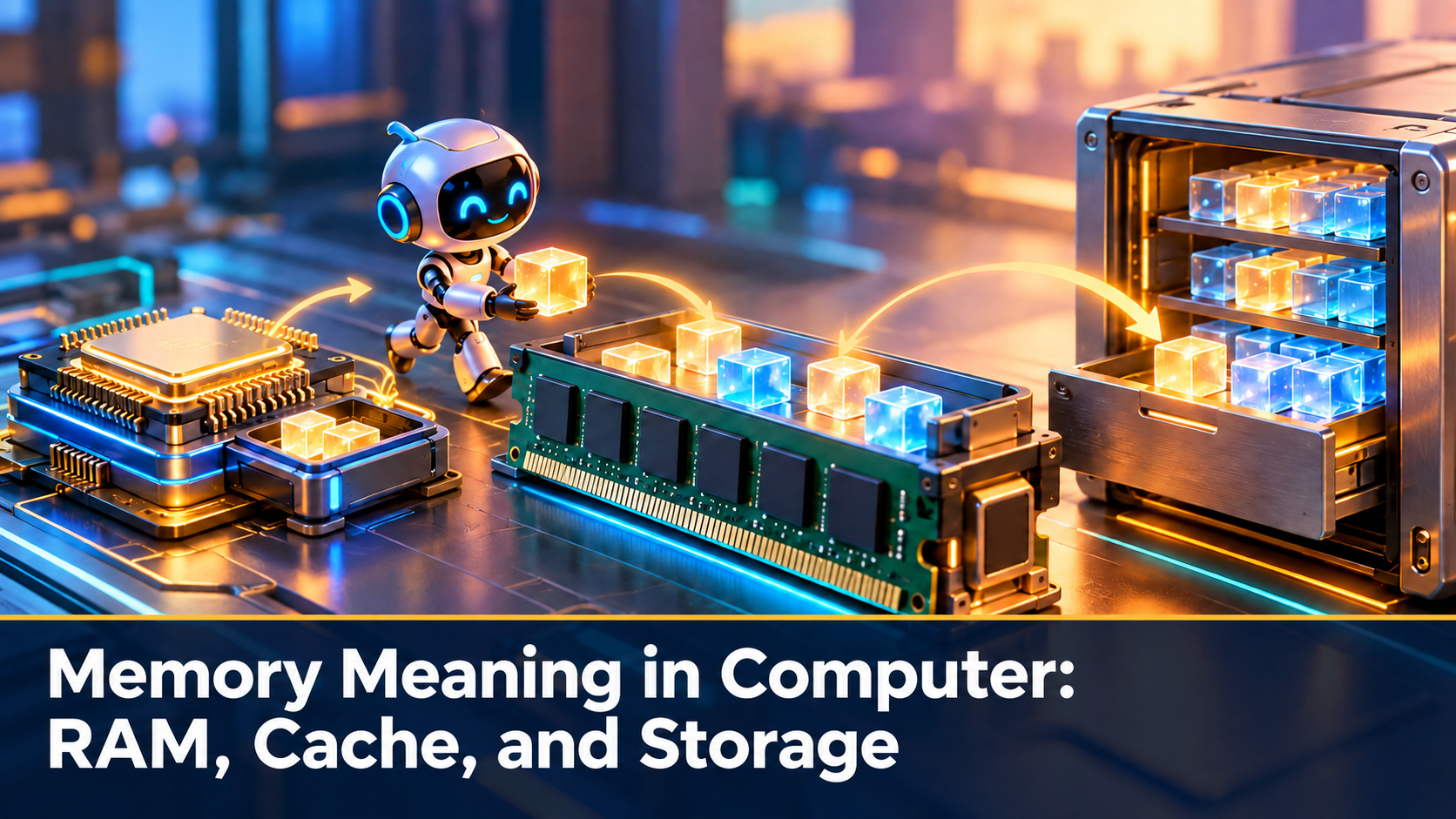
Computer memory is the hardware and electronic storage system that holds data, instructions, and intermediate results so a processor can use them. In everyday PC language, “memory” usually means RAM, but the complete memory system includes CPU registers, cache, RAM, firmware memory, and non-volatile storage such as SSDs and hard drives.
Key Facts at a Glance
- RAM is a volatile working area: its active contents normally disappear when the computer loses power.
- An SSD or HDD is non-volatile storage: files remain available after shutdown.
- CPU registers are the smallest and fastest storage locations, while storage drives provide the largest capacity.
- DRAM forms most system RAM; SRAM commonly forms CPU cache.
- Memory capacity determines how much active data a computer can hold efficiently, while memory bandwidth and latency affect transfer speed.
- Virtual memory uses storage as an overflow area, but an SSD cannot perform as quickly as physical RAM.
What Does Memory Mean in a Computer?
Computer memory means the electronic locations that store binary information for processing or later use. The information may include machine instructions, application data, operating-system code, addresses, images, and temporary calculation results.
The word has two meanings in practice. In a computer specification, “16 GB of memory” normally means 16 GB of RAM. In computer architecture, memory includes a hierarchy ranging from processor registers and cache to RAM, firmware, and persistent storage.
Memory is organized into addressable locations. A processor uses an address to identify a location, then reads the stored value or writes a new value. A bit has a value of 0 or 1, and eight bits form one byte. Operating systems and applications usually measure capacity in bytes, such as 8 GB or 32 GB.
Memory is not the same as the CPU. The CPU performs instructions, while memory supplies the instructions and data that the CPU needs. Memory is also not identical to storage, although storage devices use memory technologies such as NAND flash.
How Does Computer Memory Work?
Computer memory represents information through physical states that electronics can detect as binary values. In DRAM, a capacitor stores electrical charge and a transistor controls access; in SRAM, several transistors maintain a bit while power remains available.
A memory controller coordinates addresses, commands, timing, and data transfers. When software requests information, the processor checks its registers and cache first. If the required data is absent, the request continues toward RAM and, when necessary, storage.
What Happens When You Open a Program?
Opening a program usually involves these stages:
- The operating system locates the program files on an SSD or HDD.
- The storage controller reads required data in blocks.
- The operating system places executable code and working data into RAM.
- The processor requests instructions through its memory subsystem.
- CPU cache keeps frequently reused instructions and data close to execution units.
- Registers hold immediate operands, addresses, status values, and instruction data.
- The CPU decodes and executes the instructions.
The simplified path is storage to RAM to cache to registers, but the processor does not copy every byte through every level in a fixed sequence. Cache controllers predict and fetch data, and cache misses can retrieve data from lower levels. This distinction matters because “RAM moves into cache” is a useful explanation, not a literal description of every memory transaction.
How Do Bits Become Data?
The computer does not store a word, photograph, or video as a recognizable object inside a memory cell. Software interprets patterns of bits according to formats and instructions.
For example, four bytes might represent a 32-bit integer, part of a machine instruction, or four color-channel values. The meaning comes from the program reading those bits, not from the electrical cells themselves.
What Are the Main Types of Computer Memory?
The main computer memory types are registers, cache, RAM, firmware memory, and persistent storage. Registers and cache prioritize speed, RAM balances speed and capacity, firmware preserves startup instructions, and storage retains large amounts of data without continuous power.
Computer Memory Hierarchy
| Memory level | Typical technology | Typical capacity | Power behavior | Main purpose |
|---|---|---|---|---|
| CPU registers | Flip-flop circuits | Hundreds of bytes | Volatile | Immediate operands and addresses |
| L1 cache | SRAM | 32-128 KB per core | Volatile | Fast instruction and data reuse |
| L2 cache | SRAM | 256 KB-2 MB per core | Volatile | Larger local cache |
| L3 cache | SRAM | 4-128 MB per processor | Volatile | Shared processor data |
| System RAM | DDR4 or DDR5 DRAM | 8-256 GB | Volatile | Active programs and data |
| SSD | NAND flash | 256 GB-8 TB | Non-volatile | Fast persistent files |
| HDD | Magnetic media | 1-24 TB | Non-volatile | High-capacity persistent files |
The hierarchy exists because no single technology provides maximum speed, capacity, durability, and low cost simultaneously. SRAM is faster than DRAM but consumes more silicon per bit. NAND flash stores data without power but has higher access latency than RAM.
What Are Registers and Cache?
Registers are tiny storage locations inside CPU execution units. They hold values that instructions are actively using, such as an arithmetic operand or a memory address.
Cache is high-speed SRAM positioned inside the processor package. L1 cache is usually the fastest and smallest cache, L2 is larger, and L3 is larger again but typically slower. A cache hit supplies data quickly; a cache miss forces the processor to check a lower memory level.
Cache size alone does not determine processor performance. A large cache can reduce expensive trips to RAM, but workload behavior, CPU architecture, branch prediction, and memory latency also affect results.
What Is RAM?
RAM, or random-access memory, is the computer’s primary working space. “Random access” means the system can address locations in any order rather than reading data only sequentially.
Most desktop and laptop RAM uses DRAM modules. DRAM stores each bit in a cell containing a capacitor and transistor, so the charge must be refreshed repeatedly. RAM loses its active contents when power is removed, which makes it volatile.
RAM capacity limits multitasking. A system with insufficient RAM moves inactive data to a disk-backed page file or swap area. That process prevents immediate failure, but it introduces storage latency and can cause pauses.
What Is Firmware Memory?
Firmware memory stores low-level instructions required to initialize hardware and start an operating system. Modern motherboards commonly store UEFI firmware in electrically rewritable flash memory.
The term ROM remains common, but modern firmware storage is usually not permanently read-only. A firmware update can rewrite the chip, and an interrupted or incorrect update can prevent a motherboard from starting until recovery procedures are used.
RAM Specifications: Capacity, Speed, and Latency
RAM performance has three separate attributes: capacity, transfer rate, and latency. Capacity controls how much active data fits, transfer rate controls potential throughput, and latency measures the delay before data begins arriving.
| RAM attribute | Typical desktop example | What it affects | Common mistake |
|---|---|---|---|
| Capacity | 16, 32, 64 GB | Number and size of active tasks | Buying speed while lacking capacity |
| Data rate | DDR5-5600 to DDR5-8000 | Peak transfer bandwidth | Calling MT/s the same as clock MHz |
| CAS latency | CL28-40 | Delay measured in cycles | Comparing CL without data rate |
| Channels | 1, 2, or 4 channels | Aggregate memory bandwidth | Installing modules in the wrong slots |
| Voltage | About 1.1-1.45 V | Power and thermal behavior | Ignoring motherboard support |
| Module type | UDIMM, SO-DIMM, ECC UDIMM | Platform compatibility | Mixing incompatible physical formats |
DDR5-6000 means approximately 6,000 million transfers per second, usually written as 6000 MT/s. The actual base clock is approximately half that value because DDR technology transfers data on two clock edges. Vendors often label the effective transfer rate as “6000 MHz,” but MT/s is the more precise unit.
Capacity is usually the first upgrade priority. Faster RAM cannot compensate for constant paging when an application needs more memory than the system has available. Conversely, adding RAM will not repair a failing SSD or make a processor faster in a single-threaded workload.
Is SSD Memory or Storage?
An SSD is persistent storage that uses NAND flash memory. It is technically a memory-based storage device, but operating systems generally classify it as secondary storage rather than primary memory.
An SSD retains data without power and communicates through a storage controller, often using SATA or PCIe with the NVMe protocol. Typical PCIe 4.0 NVMe drives advertise sequential read rates around 5,000-7,400 MB/s, while some PCIe 5.0 models advertise roughly 10,000-14,000 MB/s under suitable conditions.
Those figures do not make an SSD equivalent to RAM. RAM has much lower access latency and is designed for frequent, fine-grained processor access. SSD performance also varies with queue depth, thermal throttling, controller design, drive fullness, and whether the workload is sequential or random.
HDDs store data magnetically on rotating platters. Typical consumer hard drives deliver roughly 100-250 MB/s sequential throughput and much higher access latency than SSDs. HDDs remain useful for inexpensive bulk storage, backups, and archival files, but they are poor choices for an operating-system drive when an SSD is available.
RAM Versus SSD and HDD
| Characteristic | DDR5 RAM | NVMe SSD | SATA SSD | HDD |
|---|---|---|---|---|
| Typical capacity | 16-128 GB | 1-8 TB | 500 GB-4 TB | 2-24 TB |
| Volatility | Loses data without power | Retains data | Retains data | Retains data |
| Typical sequential rate | 40,000-100,000+ MB/s | 5,000-14,000 MB/s | 450-560 MB/s | 100-250 MB/s |
| Typical access latency | Nanoseconds | Tens of microseconds | Tens to hundreds of microseconds | Several milliseconds |
| Moving parts | None | None | None | Spinning platters and actuator |
| Best role | Active programs | Operating system and applications | General persistent storage | Bulk storage and backups |
Sequential bandwidth is not a universal performance score. A computer loading thousands of small files may be limited by latency and input/output operations per second rather than the drive’s headline sequential rate.
What Is Virtual Memory?
Virtual memory is an operating-system system that gives each process an address space and can move less-used pages between RAM and storage. Windows calls its disk-backed area a paging file, while Linux commonly uses swap.
Virtual memory improves flexibility, but it does not turn an SSD into RAM. When active pages are repeatedly moved between RAM and storage, the system can enter “thrashing,” where it spends more time paging than executing applications.
A useful diagnosis is to monitor RAM usage, committed memory, page faults, and disk activity together. High memory pressure combined with sustained storage activity suggests insufficient RAM, while high disk activity with comfortable free RAM may indicate an application, update, scan, or storage problem.
How Much Computer Memory Do You Need?
Most office and student computers work well with 16 GB of RAM, gaming systems generally benefit from 32 GB, and demanding editing, virtualization, engineering, or local AI workloads often justify 64 GB or more.
| User situation | Practical RAM range | Storage range | Reason |
|---|---|---|---|
| Web, documents, video calls | 8-16 GB | 512 GB-1 TB SSD | Supports ordinary multitasking |
| Student and office productivity | 16 GB | 512 GB-1 TB SSD | Leaves room for browsers and office apps |
| Modern gaming | 16-32 GB | 1-2 TB NVMe SSD | Accommodates games and background software |
| Photo and 4K video editing | 32-64 GB | 2-4 TB SSD | Holds large media and editing caches |
| Virtual machines | 64-128 GB | 2 TB or more SSD | Assigns memory to multiple guests |
| Local AI and large datasets | 64-256 GB system RAM | 2-8 TB SSD | Supports model files and preprocessing |
These are planning ranges, not universal minimums. A browser-heavy workflow with hundreds of tabs may need more RAM than a simple office workload, while a lightweight Linux desktop can run comfortably with less.
Graphics workloads add another memory category. Dedicated graphics processors use VRAM, commonly GDDR6 or GDDR6X, for textures and rendering data. Integrated graphics often share system RAM, so allocating more system memory can help only when the integrated GPU and workload are actually constrained by shared memory.
Apple silicon systems and some mobile platforms use unified memory, where CPU and GPU access a shared pool. Unified memory reduces copying between separate pools, but the total capacity still limits simultaneous workloads and normally cannot be upgraded after purchase.
Which Memory Features Matter for an Upgrade?
Compatibility matters before advertised speed. The motherboard and processor determine the supported DDR generation, maximum capacity, module type, slot count, and sometimes the stable memory overclocking range.
Check these details before buying:
- Confirm DDR4 or DDR5 compatibility. DDR4 and DDR5 modules are not interchangeable.
- Check whether the system uses desktop UDIMMs or laptop SO-DIMMs.
- Verify the motherboard’s supported capacity and qualified memory list.
- Prefer a matched kit, such as two 16 GB modules, rather than unrelated individual sticks.
- Install two modules in the motherboard’s recommended dual-channel slots, commonly A2 and B2.
- Enable Intel XMP or AMD EXPO only after confirming stability.
- Test the system with a memory diagnostic after installation.
The practical rule is simple: buy capacity first, compatibility second, and extreme frequency last. A stable 32 GB kit is more useful than an unstable 16 GB kit with a higher advertised data rate.
ECC memory detects and, in supported configurations, corrects certain single-bit errors. ECC UDIMMs, registered DIMMs, and server memory require compatible processors and motherboards. A consumer desktop cannot normally use registered server DIMMs merely because both modules are labeled DDR5.
Why Does a Computer Show Less Usable RAM?
A computer can report less usable RAM because hardware reserves part of the address space for firmware, integrated graphics, PCIe devices, or memory-mapped peripherals. A 32-bit operating system also has a practical address limit near 4 GB.
For example, a computer with 16 GB installed might show 15.8 GB usable because the integrated GPU reserves 200 MB. A much larger discrepancy can indicate a disabled memory channel, incompatible module, faulty slot, incorrect firmware setting, or a poorly seated module.
Use the operating system’s hardware-reserved figure, firmware memory page, and a diagnostic such as Windows Memory Diagnostic or MemTest86. Do not assume that replacing the SSD will solve a RAM recognition problem.
How Can Faulty Memory Be Diagnosed?
Faulty RAM commonly causes random application crashes, corrupted archives, blue screens, boot loops, and unexplained restarts. Storage corruption, overheating, unstable overclocking, and defective drivers can produce similar symptoms, so a single crash does not prove a memory fault.
Use this sequence:
- Return XMP or EXPO settings to the standard profile.
- Power off the system and reseat each module.
- Test one module at a time in the motherboard’s recommended slot.
- Run several passes of MemTest86 or the operating system memory test.
- Test suspected modules in a known-good compatible system when possible.
- Check CPU and motherboard firmware for memory compatibility updates.
A module that passes one short test is not guaranteed healthy. Intermittent errors often appear only after temperature rises or after extended testing.
Expert Rules for Computer Memory
Rule 1: More RAM and faster RAM solve different problems. If the system is paging because applications exceed available capacity, higher transfer rates will not remove the bottleneck. Add capacity first.
Rule 2: Advertised memory speed is conditional. DDR5-6000 may require a compatible processor, motherboard firmware, correct voltage, and an enabled XMP or EXPO profile. Default settings may run the same kit at a lower standard speed.
Rule 3: A faster SSD improves loading more than active computation. An NVMe upgrade can reduce boot and application load times, but it does not increase the number of browser tabs that fit in RAM without paging.
Rule 4: Dual-channel configuration is a bandwidth feature, not extra capacity. Two 16 GB modules still provide 32 GB, but they can provide more memory bandwidth than one 32 GB module on platforms that support two channels.
Frequently Asked Questions
Does computer memory get deleted when the power is off?
RAM normally loses its active contents when power is removed because DRAM cells require electrical refresh. SSDs, HDDs, firmware flash, and other non-volatile technologies retain data without power, although long-term retention depends on device condition, temperature, and technology.
Is 8 GB of RAM enough for Windows?
Eight gigabytes can support basic web browsing, documents, email, and streaming, but it leaves limited headroom for many browser tabs, modern games, editing software, or background services. Sixteen gigabytes is a more practical baseline for a general-purpose Windows computer.
Can I use an SSD instead of RAM?
An SSD cannot replace RAM. The operating system can use a paging file on an SSD when RAM is full, but SSD latency is far higher than DRAM latency, so heavy paging causes slowdowns rather than equivalent performance.
What is the difference between memory and storage?
Memory usually means fast, temporary working space such as RAM, while storage means persistent space such as an SSD or HDD. RAM holds active programs and data; storage keeps files after shutdown and supplies them when applications load.
Does clearing RAM improve computer speed?
Closing unused applications can free RAM and reduce paging, but repeatedly using memory-cleaning utilities rarely improves a healthy system. The operating system already manages available memory, caches, and inactive pages more effectively than most third-party cleaners.
The Bottom Line
The meaning of computer memory includes the layered system that stores instructions and data for processing, although everyday specifications usually use “memory” to mean RAM. Registers and cache provide speed, RAM provides active workspace, firmware stores startup code, and SSDs or HDDs preserve files. Choose RAM capacity for workload size, memory speed for bandwidth-sensitive tasks, and storage capacity for applications and files. For most current computers, 16 GB suits ordinary work, 32 GB suits gaming and heavy multitasking, and 64 GB or more suits professional workloads. Knowing that distinction prevents the common mistake of buying more storage when the real limitation is insufficient memory.