
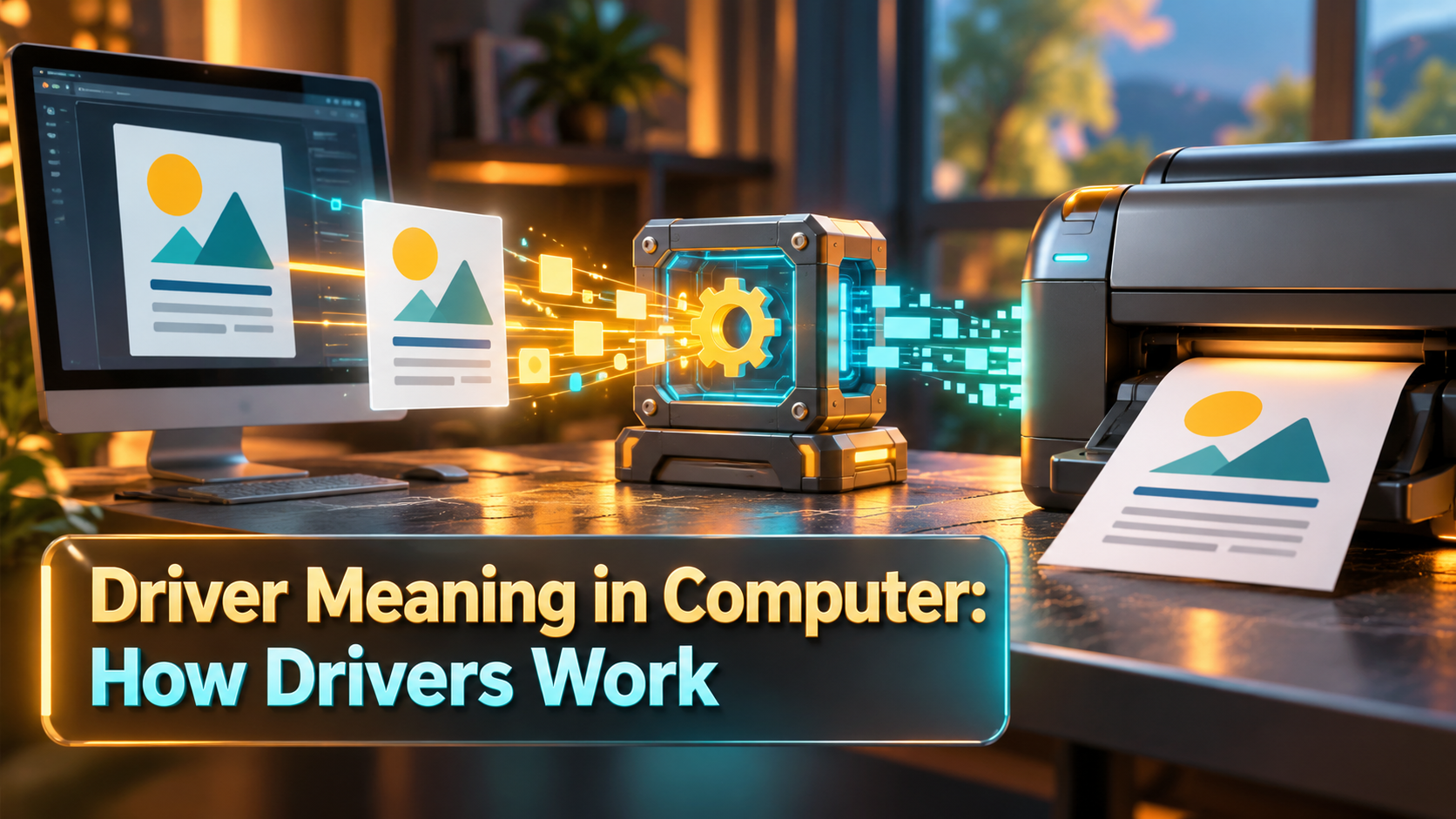
A device driver is specialized software that lets a computer’s operating system communicate with a hardware device. The driver converts general OS requests, such as “print this page” or “play this sound,” into device-specific instructions that a printer, graphics card, storage controller, keyboard, or network adapter can execute.
Key Facts at a Glance
- A computer driver connects an operating system to a particular hardware device or device class.
- Windows, macOS, and Linux often include generic drivers for common hardware.
- Manufacturer drivers can expose advanced features, higher performance, or better compatibility.
- Kernel-mode driver failures can crash the operating system, while user-mode failures are usually isolated.
- A driver is software, but firmware is code stored inside the hardware device itself.
- Drivers are normally free to download from the computer or hardware manufacturer.
What Does Driver Meaning in Computer Actually Refer To?
In computer terminology, “driver” means a software component that controls communication between an operating system and hardware. The operating system uses standardized interfaces, while hardware devices use model-specific registers, commands, protocols, and timing requirements. The driver connects those two layers.
A printer driver, for example, receives a document request from Windows or macOS and converts it into page layout, color, resolution, paper-size, and transport commands that the printer understands. A graphics driver performs a more demanding role by connecting applications such as games or Adobe Premiere Pro to the GPU’s rendering and memory-management functions.
The driver is not the physical device, and it is not usually the application that uses the device. It is an intermediary software layer. The driver may also report status information, such as low ink, a disconnected cable, a failed disk request, or a network link interruption.
The word can have other meanings in computing. A database driver, such as an ODBC or JDBC driver, connects an application to a database engine rather than connecting the operating system to physical hardware. In the target phrase, however, “driver” normally means a device driver.
Why Does a Computer Need Drivers?
A computer needs drivers because operating systems cannot contain separate instructions for every hardware model. A driver gives the OS a consistent interface while handling the technical details of a specific device.
Without a suitable driver, hardware may be invisible, partially functional, or limited to basic capabilities. Windows may detect a monitor as a generic display, for instance, but a correct GPU driver is normally required for hardware acceleration, advanced resolution modes, efficient video decoding, and modern game APIs such as DirectX 12 or Vulkan.
Drivers also handle device-specific safety and timing. A USB keyboard driver manages input reports, a storage driver manages command queues and error recovery, and an audio driver controls sample rates, buffer sizes, channels, and microphone input. Each component follows different standards and failure conditions.
A driver therefore provides four practical functions:
- It identifies or selects the hardware.
- It translates operating-system requests.
- It transfers data through a bus or interface.
- It returns status, errors, and device events to the OS.
How Does a Device Driver Work?
A device driver receives an operating-system request, translates it into hardware-specific operations, sends those operations through an interface, and reports the result back to the OS. The complete path usually includes an application, an OS subsystem, a driver, a controller, and the physical device.
Consider printing a document:
- A word processor submits a print job through the operating system’s print subsystem.
- The OS selects a printer queue and invokes the installed printer driver.
- The driver converts text, images, fonts, color settings, and page dimensions into a printer language such as PCL or PostScript.
- The operating system sends the resulting data through USB, Ethernet, or Wi-Fi.
- The printer controller interprets the data and moves paper, ink, toner, and print mechanisms.
- The printer returns completion or error information.
- The driver exposes that status to the print queue and application.
The same architecture applies to other hardware, although the details differ. An NVMe storage driver submits commands to an SSD controller. A network driver places packets into transmit queues. A GPU driver manages command buffers, video memory, shaders, and synchronization.
What Are Interrupts, DMA, and Memory-Mapped I/O?
Hardware commonly reports events through interrupts, moves data with direct memory access, and exposes control registers through memory-mapped I/O. These mechanisms allow a driver to coordinate fast transfers without making the CPU inspect every device operation continuously.
An interrupt tells the processor that a device needs attention, such as when a network packet arrives or a disk request finishes. DMA lets a controller transfer data directly between the device and system memory after the driver establishes the operation. Memory-mapped I/O gives software controlled access to device registers through defined memory addresses.
These mechanisms explain why low-level driver bugs can have serious consequences. An incorrect memory address, invalid DMA operation, or synchronization failure can corrupt data or destabilize the kernel.
What Types of Computer Drivers Exist?
Computer drivers are commonly grouped by the hardware they control, the operating-system privilege level they use, and whether they are generic or manufacturer-specific. The most visible categories include graphics, storage, network, audio, chipset, input, printer, camera, and Bluetooth drivers.
| Driver category | Hardware examples | Main responsibility | Typical user symptom |
|---|---|---|---|
| Graphics | NVIDIA GeForce RTX 4060, AMD Radeon RX 7600, Intel Arc A750 | Rendering, display output, video acceleration | Low frame rate, flicker, application crash |
| Storage | SATA controller, NVMe SSD, RAID adapter | Read/write commands, queues, error handling | Missing disk, slow transfers, boot failure |
| Network | Intel I225-V Ethernet, Wi-Fi 6E adapter | Packets, link negotiation, wireless protocols | No internet, disconnects, low throughput |
| Audio | Realtek ALC codec, Focusrite Scarlett interface | Playback, recording, sample rates, buffers | No sound, latency, microphone failure |
| Human interface | USB keyboard, mouse, game controller | Input reports and button or movement data | Delayed, missing, or incorrect input |
| Printer and scanner | HP LaserJet, Canon PIXMA, Epson scanner | Document formatting and device control | Print queue errors or missing scan features |
| Chipset and platform | Intel chipset, AMD Ryzen platform controller | PCIe, USB, power, timers, system devices | Unknown devices or power-management problems |
A single physical product may use several drivers. A laptop can have separate drivers for its integrated GPU, discrete GPU, touchpad, camera, wireless adapter, Bluetooth radio, card reader, and power-management controller.
What Is a Kernel-Mode Driver?
A kernel-mode driver runs with highly privileged access to memory and operating-system services. Storage, networking, graphics, and many bus drivers commonly operate partly or wholly in kernel mode because they require low-latency access to hardware and protected system resources.
A kernel-mode error can trigger a Windows bug check, commonly called a Blue Screen of Death, or a Linux kernel panic. On macOS, a serious low-level failure can produce a kernel panic or force a restart. The impact is larger than an ordinary application crash because the driver shares the operating system’s privileged execution environment.
What Is a User-Mode Driver?
A user-mode driver runs with fewer privileges and stronger isolation from the kernel. If a user-mode component fails, the operating system can often terminate or restart that component without taking down the entire computer.
The distinction is more nuanced than a simple hardware ranking. Windows User-Mode Driver Framework, for example, supports certain devices in user mode, while some device stacks contain both user-mode and kernel-mode components. A printer or camera may use a user-mode component, but its complete software stack can still interact with privileged services.
Generic, OEM, and Class Drivers Compared
Generic or class drivers provide standardized functions for devices that follow common specifications. OEM drivers come from the original equipment manufacturer, while third-party vendor drivers may come from a component maker such as NVIDIA, Realtek, Intel, AMD, Logitech, or Focusrite.
| Driver option | Typical source | Installation time | Main capability | Main limitation |
|---|---|---|---|---|
| Built-in class driver | Windows, macOS, Linux | 0-5 minutes | Basic USB, keyboard, mouse, storage, display functions | Advanced device controls may be absent |
| OEM computer driver | Dell, Lenovo, HP, ASUS support page | 5-15 minutes | Tested for a specific computer model | Updates may arrive later than component releases |
| Component manufacturer driver | NVIDIA, AMD, Intel, Realtek | 5-20 minutes | New features, performance fixes, broad hardware support | More frequent compatibility issues |
| Specialized professional driver | Focusrite, Universal Audio, Wacom | 10-30 minutes | Low latency, control panels, professional workflows | May require version matching and configuration |
| Open-source distribution driver | Linux kernel or distribution repository | 2-15 minutes | Auditable code and integrated updates | Feature support varies by hardware |
The best choice depends on the task. A built-in Microsoft USB mouse driver is usually preferable to an unnecessary updater package. A discrete GPU normally benefits from the current NVIDIA, AMD, or Intel driver. A professional audio interface should use the manufacturer’s supported driver, especially when low latency matters.
A generic driver is not automatically inferior. For a standard monitor, generic support may be more stable and less intrusive than a manufacturer utility. The practical rule is to install the manufacturer package only when it provides a feature, fix, or performance benefit you actually need.
Do Drivers Cost Money and How Long Do They Take?
Most device drivers cost $0 because operating-system vendors and hardware manufacturers distribute them as free downloads. Installation typically takes 2-15 minutes for a normal component, while large graphics packages or specialized professional hardware can take 10-30 minutes.
| Installation situation | Typical software cost | Typical time | Restart likely? |
|---|---|---|---|
| Windows Update class driver | $0 | 2-10 minutes | Sometimes |
| Laptop manufacturer package | $0 | 5-15 minutes | Often |
| GPU driver package | $0 | 10-25 minutes | Often |
| Professional audio interface | $0 | 10-30 minutes | Usually |
| Technician-assisted diagnosis | $30-$150 typical labor | 30-120 minutes | Depends on repair |
The purchase price of hardware can include driver development, but users rarely pay separately for the driver. Paid “driver updater” subscriptions are not required to maintain a Windows, macOS, or Linux computer.
Enterprise validation can add time before release. Microsoft’s Windows Hardware Compatibility Program and WHQL processes help vendors validate Windows hardware and drivers, but the approval schedule varies by submission, testing requirements, and vendor workflow. A fixed one-to-three-week timeline should not be treated as universal.
How Should You Install or Update a Driver Safely?
Install a driver from Windows Update, macOS Software Update, the computer manufacturer, or the hardware manufacturer. Match the package to the exact operating system, architecture, device model, and sometimes firmware revision before running the installer.
Use this sequence:
- Identify the device model and current driver version.
- Create a restore point or confirm that backups work.
- Download from the official support page.
- Read the supported operating-system and hardware list.
- Close applications that use the device.
- Install the package using the vendor’s normal option.
- Restart if requested.
- Test the original function, such as printing, audio playback, or network access.
- Keep the previous package or rollback option until the device is stable.
Windows users can inspect drivers through Device Manager. macOS users generally manage drivers through system updates and vendor installers rather than a single Device Manager equivalent. Linux users normally use the distribution package manager, kernel updates, or hardware-specific repositories.
Avoid installing several driver packages at once when diagnosing a failure. Changing one variable at a time makes the cause easier to identify.
Are Automatic Driver Updater Programs Safe?
Third-party driver updater programs are unnecessary for most computers and create avoidable security and compatibility risks. These tools may recommend an incorrect version, install bundled software, rely on incomplete device identification, or replace a stable OEM driver without a measurable benefit.
Microsoft, Apple, and Linux distributions already provide supported update mechanisms. Hardware manufacturers also publish signed packages through official support pages. A driver utility cannot create a compatible driver when the vendor has not released one.
A safer update hierarchy is:
- Operating-system update service.
- Computer manufacturer support page.
- Component manufacturer support page.
- Hardware vendor’s documented installation media.
- Third-party utility only after independent verification and a recoverable backup.
Digital signatures help establish who published a package, but a valid signature does not guarantee that a driver is suitable for every computer. Compatibility remains a model, version, and operating-system question.
What Is the Difference Between a Driver and Firmware?
A driver runs primarily on the computer’s operating system, while firmware is embedded code stored in a device, controller, or motherboard component. A printer may need both: its computer-side driver formats jobs, while printer firmware controls the internal motors, sensors, memory, and print engine.
| Attribute | Driver | Firmware |
|---|---|---|
| Primary location | Computer storage and OS memory | Device flash memory or ROM |
| Updated through | OS update or installer | Firmware utility, device app, or boot tool |
| Main role | OS-to-device communication | Internal device control |
| Failure consequence | Device malfunction or OS crash | Device failure, recovery mode, or unusable hardware |
| Example | NVIDIA display driver | SSD controller firmware |
Firmware updates deserve more caution because interruption during flashing can leave a device unusable. A driver rollback is usually easier than firmware recovery.
How Do You Fix a Missing or Broken Driver?
Fix a driver problem by identifying the device, checking the error state, reinstalling the correct package, and rolling back if the failure began after an update. The symptom matters: a yellow warning icon, no device detection, a crash, and poor performance point to different causes.
Windows Diagnosis
Open Device Manager and check for a yellow warning icon, an “Unknown device” entry, or a device that disappears when disconnected. Open Properties, record the error code and hardware identifiers, then use the manufacturer’s support page to locate the exact package.
Try these actions in order:
- Restart the computer.
- Reseat the device or reconnect its cable.
- Install pending operating-system updates.
- Reinstall the official driver.
- Use Roll Back Driver if the issue began immediately after an update.
- Remove the device only when reinstalling is necessary.
- Test a known-good cable, port, or computer.
- Check firmware, BIOS, power, and hardware diagnostics.
Windows error codes are clues rather than complete diagnoses. Code 10 commonly indicates that a device cannot start, but the underlying cause may be a driver mismatch, failed hardware, missing firmware, or power problem.
When Should You Clean-Install a GPU Driver?
A clean GPU installation is justified when normal installation fails repeatedly, the display driver crashes after remnants of several versions remain, or the graphics card changes from one vendor to another. It is unnecessary for every routine update.
For a careful clean installation, download the correct package first, disconnect from automatic driver installation if Windows may replace it, remove the old package using the vendor’s supported option, restart, and install the new package. Tools such as Display Driver Uninstaller are commonly used by experienced technicians, but they add risk and should be used only with a recovery plan.
A clean installation cannot repair a failing graphics card, inadequate power supply, overheating, damaged video memory, or an incompatible game patch. Software cleanup is not a substitute for hardware diagnosis.
Why Can a Driver Cause a Blue Screen or Kernel Panic?
A driver can crash the operating system because privileged code can access protected memory, interrupt handling, device registers, and kernel data structures. A defective storage, network, security, or graphics driver may therefore cause a full system failure rather than a normal application error.
Common triggers include:
- Installing a driver for a similar but different device.
- Using an outdated driver with a new operating-system build.
- Mixing a laptop OEM package with an incompatible component release.
- Updating during a power interruption.
- Exposing a latent hardware fault under higher performance.
- Running virtualization, antivirus, or overclocking software that conflicts with the driver.
Record the stop code, affected file name, recent updates, and crash timing. If the computer becomes stable in Safe Mode, a third-party driver or startup service becomes more likely, although Safe Mode does not prove the hardware is healthy.
Do Windows, macOS, Linux, and Virtual Machines Use Drivers?
All major operating systems use drivers, but they package and expose them differently. Windows commonly presents devices through Device Manager, macOS integrates many drivers into system frameworks and vendor applications, and Linux uses kernel modules, distribution packages, and open-source or proprietary components.
Virtual machines also use drivers. A guest operating system may install a virtual network driver, virtual disk driver, or paravirtualized device driver even though the physical network card and storage controller belong to the host computer. VMware Tools, VirtIO drivers, and Hyper-V integration components improve communication between guest and host.
Driver support depends on the platform:
- Windows has broad commercial hardware support.
- macOS tightly controls supported hardware and system extensions.
- Linux support varies by kernel version, distribution, and vendor documentation.
- ChromeOS relies heavily on integrated hardware support and automatic updates.
- Virtual machines require guest tools for performance and device integration.
Expert Rules for Avoiding Driver Problems
Experienced technicians follow several rules that are easy to miss in generic advice.
First, the newest driver is not always the best driver. A production workstation may need the vendor’s stable or certified release rather than a gaming-focused beta package.
Second, symptoms after an update deserve a rollback before repeated reinstallations. If the device worked yesterday and failed immediately after installation, the previous version is valuable diagnostic evidence.
Third, laptop owners should begin with the laptop manufacturer’s driver page. Component vendors sometimes publish packages that lack the thermal, power, hotkey, docking, or sleep customizations required by a specific model.
Fourth, driver updates cannot fix every hardware symptom. Intermittent Wi-Fi may result from antenna damage, a failing access point, or power management; distorted audio may result from a bad cable; and storage errors may indicate a failing SSD.
Frequently Asked Questions
Is a driver the same as software?
Yes. A driver is a specialized type of system software, but it is different from a normal user application. A word processor helps a person create content, while a printer driver lets the operating system send that content to a particular printer using the device’s supported commands and settings.
Can a computer work without drivers?
A computer can operate with only built-in or generic drivers, but it cannot use all hardware capabilities without appropriate support. Basic keyboard, mouse, storage, display, and network functions may work automatically, while advanced GPU acceleration, scanner controls, professional audio, biometric features, or vendor-specific buttons may remain unavailable.
Should I update drivers regularly?
Update a driver when the manufacturer lists a security fix, compatibility improvement, feature requirement, or problem relevant to your system. Routine monthly updates are reasonable for gaming GPUs, but unnecessary updates can introduce instability on office computers, production systems, and professional audio workstations.
What happens if I uninstall a driver?
Uninstalling a driver can make the associated device stop working or revert to a basic class driver. Windows may reinstall a compatible package after restarting or connecting to Windows Update, but that outcome is not guaranteed. Download the replacement driver before removal and keep a recovery method available.
Can outdated drivers slow down a computer?
Outdated drivers can reduce performance when they contain inefficient code, lack support for newer applications, or prevent hardware acceleration. They are not the only cause of slow performance. Malware, thermal throttling, insufficient memory, storage wear, background processes, and failing hardware can produce similar symptoms.
The Bottom Line
Driver meaning in computer terminology is straightforward: a driver is system software that enables an operating system to control and receive information from hardware. Use built-in drivers for ordinary plug-and-play devices, install official manufacturer drivers for advanced features, and troubleshoot by matching the package to the exact device and operating system. A reliable driver update is free, source-specific, reversible, and tested against the original symptom.