
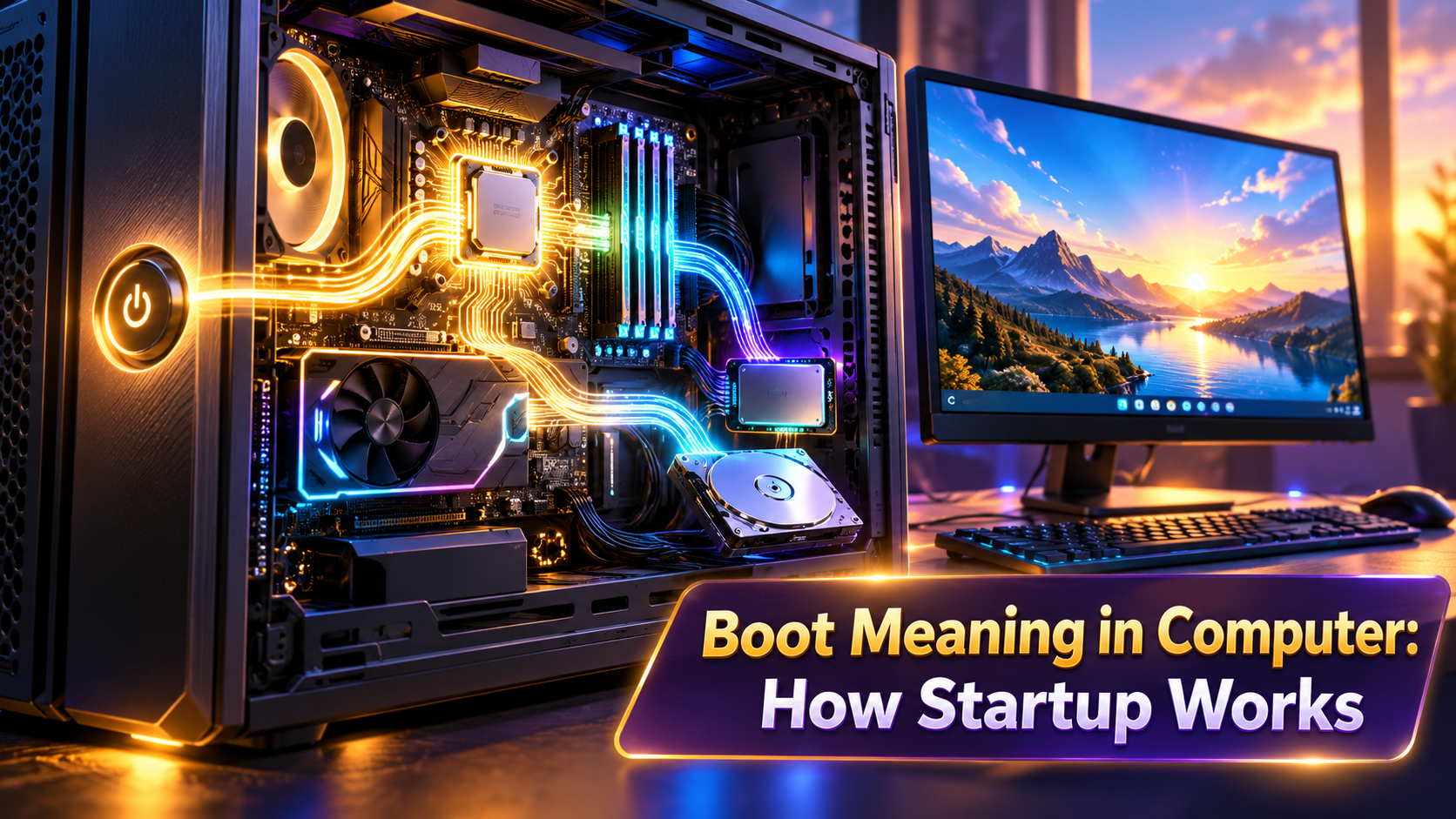
Boot meaning in computer refers to the process of starting a computer and loading its operating system into memory. During booting, firmware initializes hardware, selects a bootable device, launches a bootloader, loads the operating-system kernel, and starts the login screen or command-line environment.
Key Facts at a Glance
- Booting begins when firmware receives power and prepares the processor, memory, and connected hardware.
- POST checks essential hardware before the operating system starts, but POST is only one part of booting.
- UEFI is the modern firmware standard that generally replaces legacy BIOS.
- A bootloader loads the operating-system kernel from a storage device or network source.
- A cold boot starts from power-off; a warm boot restarts an already powered system.
- “No bootable device” usually indicates a storage, bootloader, partition, or firmware-configuration problem.
What Does Boot Mean in a Computer?
Booting means starting a computer and preparing its operating system for use. The computer runs a small firmware program stored on the motherboard, checks or initializes hardware, finds boot instructions, loads the kernel into RAM, and starts system services and the user interface.
The word comes from “pulling oneself up by one’s bootstraps.” The expression describes a small initial program loading a larger program without depending on that larger program first. In computing, firmware provides the initial instructions, while the operating system later takes control of the machine.
Booting is broader than turning on the computer. Power delivery, hardware initialization, POST, firmware configuration, boot-device selection, bootloader execution, kernel loading, driver initialization, and user-interface startup all belong to the complete startup sequence.
Is Booting the Same as Starting a Computer?
Booting and starting a computer are closely related but not identical. Pressing the power button begins electrical startup, while booting describes the software and firmware sequence that makes the machine usable.
A computer can power on without booting successfully. For example, fans may spin and indicator lights may work while a damaged bootloader prevents Windows or Linux from loading. Conversely, waking from sleep resumes an existing session and usually does not perform a full boot.
How Does a Computer Boot?
A computer normally boots through six stages: power stabilization, hardware initialization, firmware execution, bootloader selection, kernel loading, and user-environment startup. A modern Windows or Linux computer may complete the firmware portion in seconds, while operating-system services can add most of the remaining startup time.
1. Power Supply Starts the Hardware
Pressing the power button signals the motherboard to request power from the power supply unit. The PSU stabilizes its output and sends a Power Good signal when voltage is within the expected range.
The motherboard then releases the processor from reset. The CPU begins executing instructions from firmware stored in non-volatile flash memory, rather than from the operating system stored on an SSD.
2. POST Checks Essential Components
POST means Power-On Self-Test. POST checks whether essential components such as the CPU, RAM, graphics output, and motherboard can initialize well enough to continue startup.
POST is not a complete hardware test. It may not detect every storage fault, overheating problem, or operating-system corruption. A failed POST can produce beep codes, motherboard debug LEDs, repeated restarts, or a black screen before any operating-system logo appears.
3. UEFI or BIOS Initializes Devices
UEFI or legacy BIOS firmware configures hardware and reads startup settings stored in motherboard non-volatile memory. Firmware identifies storage drives, USB devices, network adapters, and other boot-capable sources.
The firmware also applies settings such as boot order, Secure Boot policy, virtualization support, memory profiles, and compatibility mode. On many systems, pressing Delete, F2, F10, or F12 immediately after power-on opens the firmware menu, although the correct key varies by manufacturer.
4. Firmware Finds a Bootloader
The firmware searches for a bootloader on the selected device. Legacy BIOS commonly reads boot code from the Master Boot Record, while UEFI normally reads an executable file from the EFI System Partition.
Windows commonly uses Windows Boot Manager. Linux installations often use GRUB or systemd-boot. The bootloader may display an operating-system menu, especially on a dual-boot computer, before loading the selected system.
5. The Bootloader Loads the Kernel
The bootloader places the operating-system kernel and required early-startup files into RAM. The kernel then takes control of the processor, establishes memory management, mounts the main file system, initializes drivers, and starts core services.
The kernel is the central component of an operating system. It manages CPU time, memory, hardware access, processes, and communication between applications and devices. A failure at this stage can produce a kernel panic in Linux, a stop error in Windows, or a system freeze before login.
6. The User Environment Appears
The operating system starts background services, security components, networking, graphics, and the login manager. After authentication, the desktop, shell, or command-line interface becomes available.
A long delay after the login screen usually points to startup applications, services, disk activity, roaming profiles, or security scans rather than POST or firmware. That distinction prevents unnecessary BIOS changes when the actual problem is inside the operating system.
What Are the Main Types of Booting?
The main types are cold boot, warm boot, hybrid startup, safe boot, network boot, and live boot. These labels describe the computer’s previous power state, the selected startup environment, or the location of the operating-system files.
| Boot type | Starting condition | Main behavior | Typical use |
|---|---|---|---|
| Cold boot | Computer fully powered off | Performs hardware initialization and normal startup | Daily power-on |
| Warm boot | Operating system requests restart | Reinitializes the system without a full power cut | Applying updates |
| Hybrid startup | Windows shutdown with Fast Startup | Saves kernel state to hiberfil.sys |
Faster Windows startup |
| Safe Mode | Diagnostic startup selected | Loads limited drivers and services | Removing faulty software |
| Network boot | Local disk bypassed or unavailable | Loads an image from a PXE server | Enterprise deployment |
| Live boot | Bootable USB or optical media selected | Runs an operating system from external media | Recovery and testing |
Cold Boot Versus Warm Boot
A cold boot starts from a powered-off state and normally performs the fullest hardware initialization. A warm boot restarts the operating system without removing power from every component, although modern firmware and operating systems can still perform substantial hardware reinitialization.
The terms are not perfectly standardized. Some systems perform nearly the same POST during a restart as during power-on, while others optimize restart behavior. A restart is therefore not guaranteed to skip all hardware checks.
What Is Fast Startup?
Fast Startup is a Windows feature that logs off the user and saves the Windows kernel session and loaded drivers to a hibernation file. The next power-on restores that state instead of performing a completely fresh kernel startup.
Fast Startup is not the same as a normal restart. Windows Restart generally performs a full operating-system reload, which is why restarting can resolve driver and update problems that shutdown followed by power-on does not.
Fast Startup can complicate dual-boot systems because Windows may leave NTFS volumes in a hibernated state. Linux should not write to a Windows volume marked as hibernated, because doing so can corrupt pending Windows session data.
What Is the Difference Between UEFI and BIOS?
UEFI is the current firmware interface, while BIOS is the older firmware model. UEFI commonly uses GPT and an EFI System Partition, supports Secure Boot, and handles modern storage and hardware more flexibly than legacy BIOS.
| Feature | Legacy BIOS | UEFI |
|---|---|---|
| Common partition format | MBR | GPT |
| Traditional boot location | First sector of disk | EFI System Partition |
| Maximum practical boot disk under standard limits | About 2 TB | Far beyond consumer drive capacities |
| Interface | Text-based setup | Text or graphical setup |
| Secure Boot | Not available as a native standard feature | Supported |
| Boot file style | Disk boot code | Firmware-readable .efi file |
| Compatibility mode | Native legacy environment | May provide CSM or legacy compatibility |
The often-repeated claim that UEFI supports exactly 9.4 zettabytes describes a theoretical addressing limit, not a normal consumer-drive guarantee. Actual limits depend on firmware implementation, operating-system support, partition-table structures, and manufacturer restrictions.
UEFI does not automatically make every boot faster. SSD latency, firmware initialization, memory training, device count, encryption, driver loading, and startup applications often have a larger practical effect than the firmware label.
What Does Secure Boot Do?
Secure Boot allows UEFI firmware to verify approved digital signatures before launching boot components. Its purpose is to reduce the risk that boot-level malware replaces a trusted bootloader before the operating system’s security tools start.
Secure Boot does not prove that every later application is safe, and disabling it is not a universal repair method. Linux distributions with signed bootloaders, Windows installations, and recovery tools may work with Secure Boot enabled, while custom kernels or older utilities may require configuration changes.
How Long Should Computer Booting Take?
A typical modern computer with an NVMe SSD may reach the login screen in roughly 8-20 seconds, while a SATA SSD often takes 15-35 seconds and a mechanical hard drive may require 45 seconds to several minutes. These are practical ranges, not performance guarantees.
| Storage and platform | Typical login-screen time | Main limiting factors |
|---|---|---|
| NVMe SSD with UEFI | 8-20 seconds | Firmware initialization and startup services |
| SATA SSD with UEFI | 15-35 seconds | SATA link and operating-system loading |
| 7,200 RPM HDD | 45-120 seconds | Seek latency and random reads |
| Older HDD with many services | 2-5 minutes | Fragmentation, disk health, startup workload |
| USB live Linux system | 30 seconds-3 minutes | USB speed and image compression |
A system that suddenly becomes slower deserves diagnosis. Check available storage space, drive health, startup applications, pending updates, malware indicators, and event logs before changing firmware settings.
An SSD can reduce storage-related startup delays substantially, but it cannot repair corrupted boot files, failed RAM, an unstable power supply, or a defective motherboard. Hardware replacement is not a substitute for identifying the failing boot stage.
How Do You Boot From a USB Drive?
To boot from a USB drive, create valid boot media, insert it before startup, open the firmware boot menu, and select the USB device. A typical process takes 5-15 minutes for media preparation, but the download and writing time depends on the image size and USB connection.
- Download an ISO from the operating-system publisher, such as Microsoft or a Linux distribution project.
- Write the ISO with a tool such as Rufus, Fedora Media Writer, or balenaEtcher.
- Insert the USB drive and restart the computer.
- Open the one-time boot menu, commonly with F12, F9, Esc, or a manufacturer-specific key.
- Select the entry prefixed with
UEFI:when the computer uses UEFI and GPT. - Choose installation, recovery, or live-session mode.
A USB drive may not appear if the image was written incorrectly, the port is disabled, Secure Boot rejects the bootloader, or the firmware is configured for an incompatible legacy mode. Test another USB port and verify the image checksum before changing security settings.
Why Will a Computer Not Boot?
A computer may fail to boot because it lacks power, fails POST, cannot find its storage drive, has a damaged bootloader, or encounters operating-system corruption. The visible symptom identifies the likely layer, so troubleshooting should proceed from power to hardware, firmware, storage, and software.
| Symptom | Likely layer | Safe first action | Escalation |
|---|---|---|---|
| No lights or fans | Power | Check outlet, cable, PSU switch, and charger | Test PSU or service hardware |
| Fans run, screen stays black | POST or display | Check monitor input and diagnostic LEDs | Reseat RAM or inspect GPU |
| Manufacturer logo freezes | Firmware or device | Enter UEFI and check drive detection | Disconnect external devices |
| No bootable device | Drive or bootloader | Confirm boot order and storage presence | Run recovery repair |
| Windows blue screen during startup | Driver or system files | Try recovery environment or Safe Mode | Restore, repair, or reinstall |
| Kernel panic or GRUB error | Linux boot chain | Check recent kernel or bootloader changes | Repair GRUB from live media |
What Does “No Bootable Device” Mean?
“No bootable device” means firmware did not find a usable startup entry on the selected devices. The cause may be a disconnected SSD, incorrect boot order, damaged EFI files, an empty drive, a failed disk, or a mismatch between UEFI and legacy boot modes.
First enter UEFI and determine whether the drive is detected. If the drive is absent, repeated rebooting will not repair a physical or connection problem. If the drive appears, check whether Windows Boot Manager or the intended Linux boot entry is selected.
What Does a Black Screen During Boot Mean?
A black screen before the manufacturer logo usually indicates power, display, GPU, RAM, or POST trouble. A black screen after the operating-system logo more often indicates a graphics driver, display-manager, encryption, or operating-system issue.
Disconnect unnecessary USB devices, verify the monitor input, and observe motherboard diagnostic lights or beep codes. Do not repeatedly remove a CMOS battery without recording firmware settings, because that can erase custom storage, virtualization, fan, and boot configurations.
Common Boot Mistakes to Avoid
- Leaving removable media connected: A non-bootable USB or external disk can alter boot priority or delay device detection.
- Forcing power off during updates: Interrupting firmware or operating-system updates can corrupt startup components.
- Changing UEFI mode randomly: Switching between UEFI and legacy mode can make an existing installation invisible without changing any files.
- Disabling Secure Boot as a first step: Security settings should change only when a known compatibility problem requires it.
- Ignoring drive health: A slow boot, clicking HDD, disappearing SSD, or repeated repair screen can indicate impending storage failure.
- Writing to a hibernated Windows volume from Linux: Fast Startup can leave file-system metadata in an unsafe state for cross-system access.
A practitioner rule is simple: identify the last stage that worked before changing settings. If the firmware menu appears, power delivery and basic processor execution are probably functioning. If the Windows logo appears, POST and boot-device selection have already succeeded.
When Should You Use Safe Mode, Live Boot, or PXE?
Use Safe Mode when the installed operating system starts but a driver or service prevents normal operation. Use a live USB when the installed system will not start or when you need to copy files without loading its damaged environment. Use PXE when an organization provisions computers from a central deployment server.
Safe Mode is limited by design. It is useful for removing a graphics driver, uninstalling a recent application, checking system files, or running an offline malware scan, but it is not a full hardware diagnostic environment.
A live Linux system can test memory, inspect partitions, copy files, examine SMART drive data, and repair some boot configurations. It cannot recover data that has already been overwritten, and careless repair commands can worsen file-system damage.
PXE boot depends on DHCP, TFTP or HTTP infrastructure, firmware support, and a configured deployment server. It is rarely useful for a home user unless a network administrator has already prepared the environment.
The Bottom Line
The boot meaning in computer is the complete startup process that moves a machine from powered-off or restarting hardware to a usable operating system. UEFI or BIOS initializes the hardware, a bootloader selects the operating system, the kernel loads into RAM, and system services prepare the login environment.
When booting fails, separate power problems, POST failures, firmware configuration, storage detection, bootloader errors, and operating-system faults. That sequence is safer and faster than changing Secure Boot, reinstalling Windows, or replacing hardware without identifying the failed stage.
Frequently Asked Questions
Does booting erase files?
Normal booting does not erase personal files. Booting loads firmware, startup code, the operating-system kernel, and services; file deletion occurs only when a user, program, repair tool, update, or storage failure changes the data.
Is restarting better than shutting down?
Restarting is often better for applying updates and clearing driver or memory-state problems because Windows Restart normally reloads the kernel. Shutdown may use Fast Startup, which saves part of the Windows session and restores it later.
Can a computer boot without an operating system?
A computer can start its firmware without an operating system, but it cannot provide a normal desktop or shell. It may open a UEFI setup screen, run a hardware diagnostic, launch a network environment, or display a message saying no bootable device was found.
What is a boot device?
A boot device is hardware or a network source containing startup code that firmware can execute. Examples include an NVMe SSD, SATA hard drive, USB installer, optical disc, or PXE deployment server.
Does booting from USB damage the computer?
Booting from USB does not normally damage a computer. Risk comes from unsafe software, incorrect installation choices, malware, or commands that format internal drives. Confirm the target disk before installing or repairing an operating system.
Why does Windows boot slowly after an SSD upgrade?
An SSD may not solve slow startup if firmware initialization, memory training, startup applications, encryption, updates, or damaged system files dominate the delay. Confirm that the operating system is installed on the SSD and inspect startup applications and drive health before replacing more hardware.