
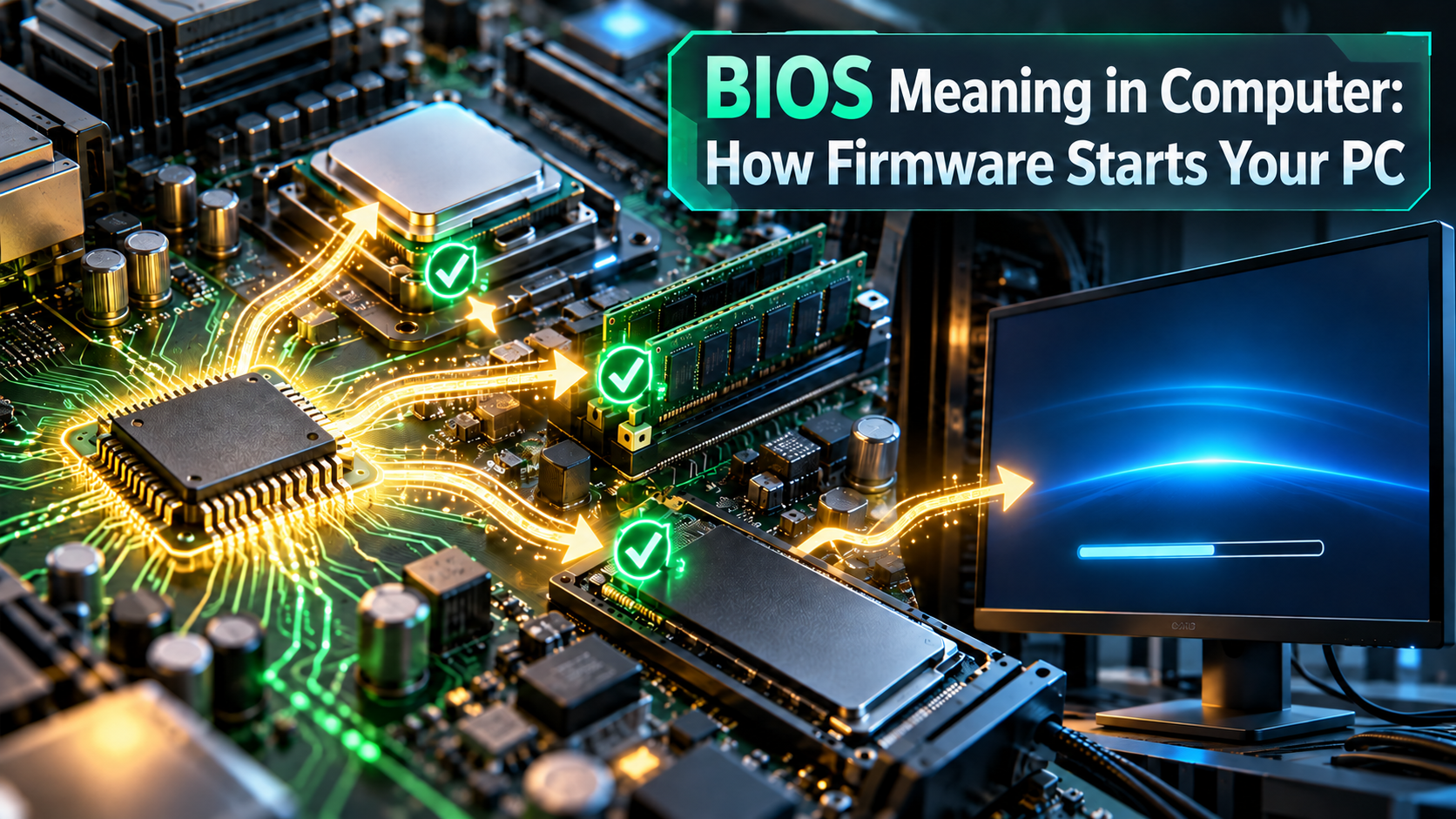
BIOS means Basic Input/Output System. In a computer, BIOS is motherboard firmware that initializes essential hardware, performs the Power-On Self-Test (POST), selects a boot device, and transfers control to an operating-system bootloader. Modern PCs usually use UEFI firmware, although people still commonly call the setup screen “the BIOS.”
Key Facts at a Glance
- BIOS is firmware stored in non-volatile flash memory on the motherboard.
- POST checks whether core components such as the CPU, memory, graphics output, and storage can initialize.
- Legacy BIOS normally boots from MBR-partitioned drives, while UEFI normally boots from GPT drives.
- UEFI can provide Secure Boot, larger-drive support, graphical setup menus, and boot entries stored in motherboard non-volatile memory.
- The CMOS battery preserves selected settings and the real-time clock; it does not normally store the entire BIOS program.
- A BIOS update can add processor support or security fixes, but an interrupted update can leave a motherboard unable to start.
What Does BIOS Mean in a Computer?
BIOS is the firmware layer that runs before Windows, Linux, or another operating system. The acronym expands to Basic Input/Output System, describing the early routines that connect the processor with devices such as memory, storage controllers, keyboards, and display hardware.
Firmware is software stored in persistent memory rather than loaded from an SSD after power-on. BIOS therefore remains available when the computer has no operating system, no formatted drive, or no working bootloader. A computer can enter a firmware setup screen even when Windows has been deleted.
The word BIOS has two current meanings. Technically, it refers to the older PC firmware design called legacy BIOS. In everyday support conversations, “enter the BIOS” often means “open the motherboard’s firmware setup,” even when the machine actually uses UEFI.
What BIOS Is Not
BIOS is not the operating system, a device driver, or the CMOS battery. BIOS initializes enough hardware to locate and launch a bootloader, while the operating system later loads full drivers and manages applications, files, users, and networking.
BIOS is also not the same as CMOS. CMOS originally described a low-power memory technology used for configuration storage. Current motherboards commonly use flash memory and NVRAM for firmware and settings, while the CR2032 battery mainly maintains the real-time clock and some board configuration data.
How Does BIOS Start a Computer?
The BIOS boot process moves through power delivery, processor startup, hardware testing, device initialization, boot selection, and bootloader handoff. A modern UEFI system can perform portions of initialization concurrently, so the sequence is logical rather than always a visibly separate set of delays.
- Power reaches the motherboard. The power supply provides standby and operating voltages. The motherboard’s power-management circuitry confirms that the system can leave its reset state.
- The CPU begins at the reset vector. The processor starts execution from a predefined address that leads to firmware code stored in the motherboard’s flash memory.
- Firmware performs POST. POST checks processor initialization, memory training, graphics output, and selected onboard devices. A failed check can produce a diagnostic LED, two-digit code, beep pattern, or blank display.
- Hardware is initialized. Firmware configures memory controllers, PCI Express devices, USB controllers, storage interfaces, fans, and other devices required for startup.
- Firmware reads boot policy. The boot-order list identifies possible sources, such as an NVMe SSD, SATA drive, USB device, optical disc, or network server.
- A bootloader is located. Legacy BIOS generally reads boot code from an MBR. UEFI normally reads an executable file from the EFI System Partition on a GPT disk.
- Control passes to the operating system. Windows Boot Manager, GRUB, or another bootloader loads the operating system kernel and its early drivers. Firmware is no longer managing normal desktop activity.
A successful POST does not prove that Windows can start. POST can finish correctly while the selected SSD has a damaged bootloader, an incompatible partition mode, or no operating system at all.
Why Does a Computer Show a Beep or LED Code?
A beep or diagnostic LED appears when firmware detects a failure before normal display output or operating-system loading. The exact meaning depends on the motherboard manufacturer, firmware vendor, and model, so a “three-beep” interpretation is not universal.
A practical diagnosis starts with the board manual. Record the pattern, remove external USB devices, reseat the memory, verify the graphics card’s power connectors, and test one memory module in the recommended slot. Motherboard debug labels such as CPU, DRAM, VGA, and BOOT narrow the failing stage, but they do not prove that the labeled component itself is defective.
Legacy BIOS and UEFI: What Is the Difference?
Legacy BIOS and UEFI both prepare hardware and start an operating system, but UEFI uses a more extensible firmware environment with modern boot files, GPT support, and optional security validation. UEFI is the normal firmware architecture on current desktop, laptop, and server platforms.
| Feature | Legacy BIOS | UEFI firmware |
|---|---|---|
| Typical execution environment | 16-bit real mode | 32-bit or 64-bit protected environment |
| Normal partition scheme | MBR | GPT |
| Common boot file method | Code in the MBR and partition boot sector | .efi bootloader in the EFI System Partition |
| Maximum conventional boot-disk limit | About 2 TiB with 512-byte sectors | Far beyond consumer drive capacities through GPT |
| Interface | Text-based keyboard menus | Text or graphical menus, keyboard and sometimes mouse |
| Security feature | No native Secure Boot | Secure Boot with signed boot components |
| Compatibility mode | Native legacy operation | UEFI-CSM may emulate legacy boot behavior |
| Typical current use | Older PCs and older operating systems | Windows 10 and 11 PCs, current Linux distributions |
The often-repeated “UEFI supports 9.4 zettabytes” figure describes a GPT theoretical limit, not a practical guarantee. File-system limits, operating-system support, controller capacity, and hardware implementation matter more than that theoretical maximum.
Legacy BIOS does not literally address only 1 MB of installed system RAM. Its 16-bit execution environment and BIOS interfaces impose limitations during early startup, but the operating system can use much more memory after boot. The practical legacy limitation most users encounter is the approximately 2 TiB MBR boot-disk ceiling.
Does UEFI Make a Computer Boot Faster?
UEFI can reduce startup time, but the result depends on memory training, device initialization, storage detection, firmware settings, and operating-system startup. UEFI itself does not guarantee a particular number of seconds or automatically initialize every device in parallel.
Fast Boot options skip or shorten selected checks. That can save time but may make it harder to enter setup or detect a newly installed device. On a typical modern desktop, firmware initialization may take roughly 2-10 seconds, but a new memory configuration, USB-heavy setup, or failed training attempt can take much longer.
Where Is BIOS Stored, and What Does the Battery Do?
The BIOS or UEFI program is stored in a rewritable flash-memory chip attached to the motherboard. The chip commonly holds tens of megabytes of firmware-related content, but capacity varies by manufacturer and board design; the chip’s size is not a universal specification.
The CMOS battery is usually a CR2032 3-volt coin cell. Its main jobs are maintaining the real-time clock and preserving selected low-power configuration data when the computer is unplugged. A typical battery lasts approximately 3-5 years, although heat, storage conditions, and motherboard design affect service life.
A failing battery can cause an incorrect date, lost custom settings, or repeated setup prompts. It normally does not erase the complete firmware image. Replacing the battery is therefore different from reflashing BIOS.
| Component or area | Stored information | Typical failure symptom | Normal remedy |
|---|---|---|---|
| SPI flash chip | BIOS or UEFI firmware image | No startup, failed update, corrupted firmware | Recovery flash, chip programming, or motherboard replacement |
| NVRAM or firmware settings | Boot entries, Secure Boot state, fan and device preferences | Boot-order changes or lost configuration | Restore settings or clear configuration |
| CMOS-backed clock area | Date and time, selected low-power values | Clock resets after shutdown | Replace CR2032 battery |
| EFI System Partition | UEFI bootloader files | Firmware opens but operating system will not load | Repair or reinstall bootloader |
| SSD or hard drive | Operating system, applications, personal files | “No boot device” or operating-system error | Check drive health and repair the boot path |
Which BIOS Settings Matter Most?
The most consequential firmware settings control boot mode, security, memory profiles, processor behavior, cooling, and device enablement. Most everyday computers should remain on automatic defaults unless a specific compatibility, performance, or recovery need justifies a change.
- Boot mode: Use UEFI for current operating systems. Legacy or CSM mode may be required by older operating systems or expansion cards.
- Secure Boot: When enabled, UEFI verifies trusted signatures on approved boot components. Secure Boot helps block some boot-level malware, but it does not replace operating-system security software or disk encryption.
- XMP and EXPO: Intel XMP and AMD EXPO are memory profiles that apply tested speed, voltage, and timing values. Enabling a profile can improve performance, but an advertised memory speed is not guaranteed on every CPU and motherboard combination.
- Resizable BAR: This PCI Express feature can allow a compatible processor to access a larger graphics-memory region. Support requires coordination among the motherboard firmware, CPU platform, operating system, and graphics-card driver.
- Fan control: Firmware curves can prevent thermal spikes, but an aggressive silent profile may allow higher temperatures or delayed cooling under sustained workloads.
- Virtualization: Intel VT-x and AMD SVM enable hardware virtualization for virtual machines, Windows features, and some security tools.
- Administrator password: A firmware password can restrict setup changes and boot-device selection. It does not encrypt files and cannot substitute for a Windows, Linux, or disk-encryption password.
An expert rule is to change one performance setting at a time. Record the previous value, test stability, and keep a recovery path available before changing voltage, memory timing, or processor limits.
Should You Update BIOS or UEFI Firmware?
Update BIOS or UEFI firmware when the release addresses a problem that applies to your computer, such as processor support, a security vulnerability, memory compatibility, or a documented stability defect. A newer version alone is not a sufficient reason to accept update risk.
Motherboard manufacturers publish release notes and compatible board models on their support pages. Verify the exact board revision, download the correct file, and use the manufacturer’s instructions. A firmware image for a visually similar board can make the system unbootable.
A typical update takes approximately 5-15 minutes, including preparation and one or more reboots. The actual writing phase may take only a few minutes. Do not remove power, press reset, or interrupt the process during the writing phase.
Safe Firmware-Update Procedure
- Identify the exact motherboard. Check the printed model and revision, Windows system information, or the manufacturer’s utility.
- Read the release notes. Confirm that the update fixes a relevant issue or adds support you need.
- Save current settings. Photograph fan curves, boot mode, memory profiles, virtualization, and storage-controller settings.
- Use stable power. A desktop should use reliable mains power, and a laptop should have its charger connected with a charged battery.
- Prepare the firmware file. Follow the vendor’s naming and USB-format requirements. Some flashback tools require a particular USB port.
- Run the built-in updater. Tools may be called EZ Flash, M-Flash, Q-Flash, Instant Flash, or a vendor-specific equivalent.
- Wait for completion. Several automatic restarts can be normal. The screen may remain blank during memory retraining.
- Load and review defaults. Reapply only necessary settings, then confirm boot mode, storage detection, temperature readings, and memory stability.
BIOS Flashback is a recovery feature found on selected motherboards. It can write firmware from a USB drive even without a working operating system and, on some boards, without a supported CPU or memory installed. It is not universal, and the correct USB port, filename, and power state still matter.
How Do You Enter BIOS Setup?
Most desktop computers enter firmware setup when the user repeatedly presses Delete or F2 immediately after pressing the power button. Some systems use F1, F10, F12, or Esc, and laptops often display the manufacturer’s key on a brief startup screen.
Windows can also request a UEFI restart through Advanced Startup on compatible systems: open Settings, choose the recovery options, select Advanced Startup, then choose UEFI Firmware Settings. The exact menu names vary by Windows version and manufacturer.
Fast Boot may leave too little time for a keyboard shortcut. In that case, use the operating system’s UEFI restart option, temporarily disable Fast Boot, or use the board’s documented recovery procedure. A Bluetooth keyboard may not be available early enough, so a wired USB keyboard is more reliable.
What Should You Do When a Computer Will Not POST?
A computer that will not POST should be diagnosed from power and connections toward memory, graphics, firmware, and storage. Remove variables first, because adding replacement parts before reading diagnostic indicators can conceal the original fault.
- Confirm that the wall outlet, power strip, PSU switch, 24-pin motherboard connector, and CPU power connector are connected.
- Disconnect USB devices, external drives, and nonessential expansion cards.
- Check motherboard diagnostic LEDs or a two-digit code against the board manual.
- Reseat memory and test one module in the manufacturer-recommended slot.
- Reseat the graphics card and verify its auxiliary power cables. If the processor has integrated graphics, test the motherboard video output.
- Clear firmware settings using the board’s jumper or documented clear-CMOS procedure.
- Test with minimum hardware: motherboard, CPU and cooler, one memory module, power supply, and display output.
- Use BIOS Flashback if the board supports it and a recent update or corruption is suspected.
- Inspect for bent CPU-socket pins, loose cooler pressure, burn marks, or a short against the case.
- Test known-good components only after the basic checks are complete.
Clearing CMOS restores firmware settings; it does not repair a physically damaged board or reinstall an operating system. Disconnect AC power before using a jumper or removing a battery, and follow the motherboard manual because procedures differ.
What Does “No Boot Device” Mean?
“No boot device” means firmware completed enough initialization to search for a bootable source but did not find a valid boot path. The SSD may be missing, disabled, disconnected, incorrectly prioritized, or present without a working bootloader.
First confirm that the drive appears in firmware storage information. Then verify that the machine uses the correct UEFI or legacy mode, that the EFI System Partition or MBR boot code exists, and that the operating system has not suffered file-system damage. A drive visible in BIOS can still be failing, so back up data before repeated repair attempts.
BIOS Versus Operating-System and Hardware Alternatives
BIOS and UEFI are not interchangeable with the operating system, bootloader, CMOS battery, or motherboard chipset. Each component has a different stage and responsibility.
| Component | Runs or operates when | Primary responsibility | Failure example |
|---|---|---|---|
| BIOS or UEFI | Immediately after power-on | Initializes hardware and selects a boot path | POST failure or firmware recovery screen |
| Bootloader | After firmware selects a disk | Loads the operating-system kernel | Windows Boot Manager or GRUB error |
| Operating system | After the kernel starts | Manages users, files, applications, and drivers | Blue screen or kernel panic |
| Motherboard chipset | During firmware and operating-system operation | Connects CPU, storage, USB, PCIe, and other controllers | Missing ports or unstable devices |
| CMOS battery | While system power is removed | Maintains clock and selected low-power settings | Date resets and setup warnings |
| TPM | During firmware and operating-system security workflows | Stores or protects cryptographic measurements and keys | BitLocker recovery request after firmware changes |
The distinction matters during troubleshooting. A computer that reaches a firmware menu has passed some power and processor stages, but that result says little about the health of Windows, Linux, the SSD, or the bootloader.
Common BIOS Mistakes and Their Consequences
Several firmware mistakes repeatedly cause avoidable support incidents.
- Using the wrong firmware file: Board families can have separate revisions and regional variants. Confirm the printed model before downloading.
- Changing legacy mode after installation: Switching from UEFI to CSM, or the reverse, can make an otherwise healthy operating system disappear from the boot list.
- Assuming memory profiles are guaranteed: XMP and EXPO increase frequency and may reduce stability, especially with four DIMMs or mixed memory kits.
- Clearing CMOS without recording settings: Storage mode, fan behavior, virtualization, and boot order may revert to defaults.
- Flashing during unstable power: An interrupted write can require Flashback, external chip programming, or board replacement.
- Treating Secure Boot as encryption: Secure Boot validates boot components; it does not protect files if someone removes the drive and reads it elsewhere.
- Overusing automatic overclocking: Higher voltage and power limits can increase heat, noise, and long-term component stress without improving every workload.
The honest limitation is that firmware cannot solve a defective power supply, damaged memory, failing SSD, or unsupported processor. It can expose those faults, configure around some compatibility problems, and sometimes recover from corruption, but it is not a general hardware repair tool.
Frequently Asked Questions
Is BIOS hardware or software?
BIOS is software stored as firmware on motherboard hardware. The flash chip is physical hardware, while the instructions inside it are software. Firmware occupies the boundary between components and the operating system, which is why it can initialize a computer before an SSD-based operating system loads.
Can a computer work without BIOS?
A conventional PC cannot start normally without functioning motherboard firmware. The processor needs initial code to configure memory, enumerate devices, and locate a bootloader. A damaged firmware chip may be recoverable through a vendor’s flashback system, external programmer, or replacement motherboard.
Does BIOS delete files?
Changing ordinary firmware settings does not delete files from an SSD or hard drive. A firmware update also normally leaves operating-system data untouched. Data can become inaccessible if boot mode or storage-controller settings change, and a separate operating-system reinstall or disk-format operation can erase files.
Why does BIOS time differ from Windows time?
Firmware and Windows can interpret the hardware clock differently, especially when one uses local time and the other uses Coordinated Universal Time. A weak CR2032 battery can also reset the clock. Correct the operating system’s time-zone setting and replace the battery if the date resets while powered off.
Is UEFI better than legacy BIOS for Windows 11?
UEFI is the appropriate mode for a supported Windows 11 installation because modern Windows security requirements commonly involve UEFI, Secure Boot, and TPM 2.0. Compatibility mode can prevent expected boot and security behavior. Before changing modes, confirm that the system disk uses GPT and has an EFI System Partition.
The Bottom Line
BIOS meaning in computer use is best understood as the motherboard firmware that starts hardware, performs POST, selects a boot device, and hands control to an operating-system bootloader. Modern PCs usually implement that role through UEFI rather than legacy BIOS. Leave stable settings alone, use UEFI with Secure Boot when appropriate, update firmware for a documented reason, and diagnose POST failures from power and memory through firmware and storage.