
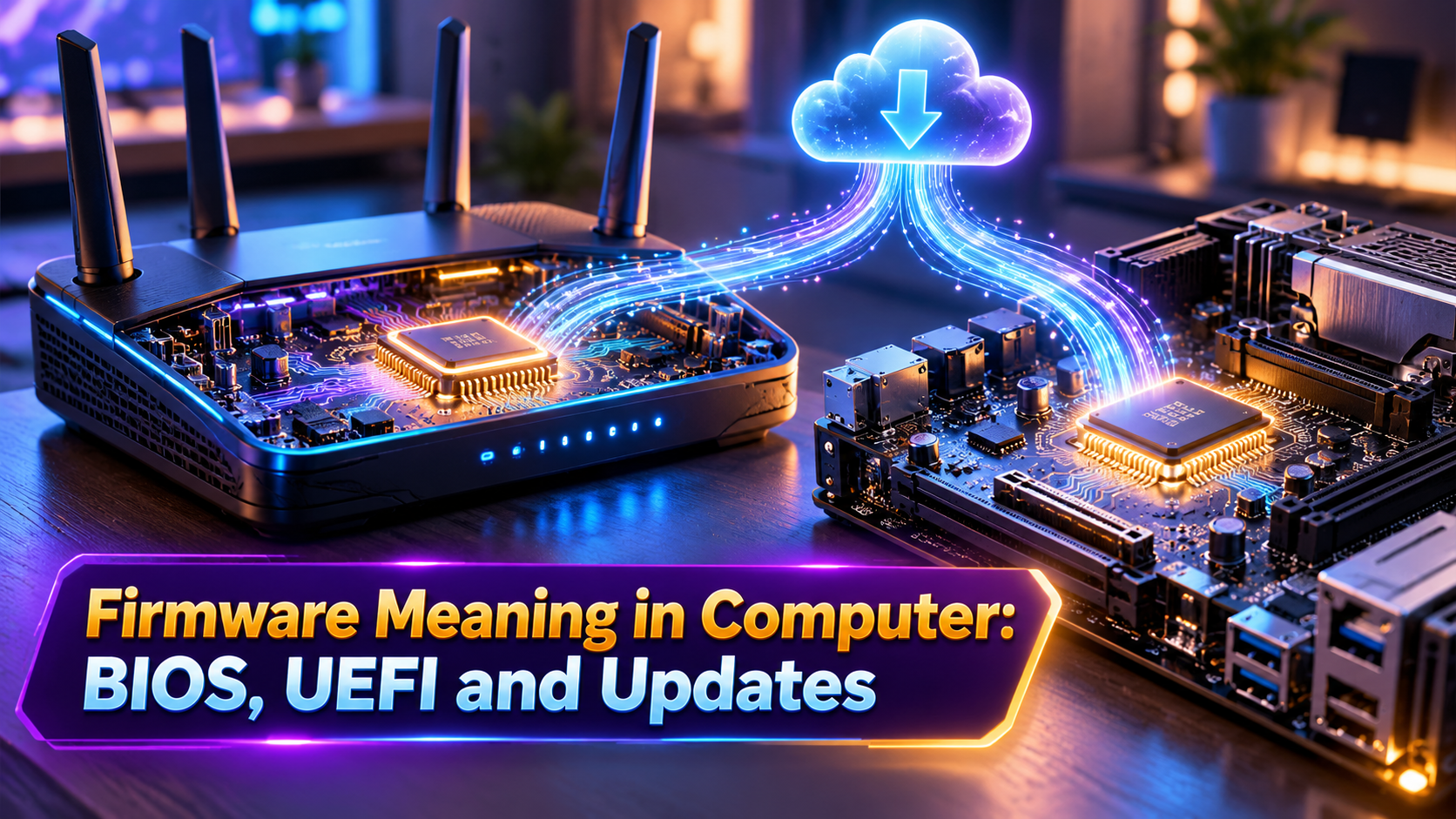
Firmware in a computer is low-level software stored in non-volatile memory on a motherboard or device, where it controls hardware initialization and provides the startup interface between physical components and the operating system. Examples include UEFI motherboard firmware, GPU VBIOS, SSD controller firmware, and network-adapter firmware.
Key Facts About Computer Firmware
- Firmware is software, but it is designed for a specific hardware device and stored in persistent memory.
- A computer’s motherboard firmware performs early startup tasks such as POST, memory initialization, device discovery, and boot selection.
- Modern PCs generally use UEFI firmware rather than legacy BIOS, although people commonly use “BIOS” for both.
- Firmware is different from a device driver: firmware lives on the device, while a driver normally runs inside the operating system.
- Firmware updates can improve compatibility or repair security defects, but an interrupted write can leave hardware unable to start.
- Clearing CMOS resets firmware settings; it does not normally restore a damaged firmware image.
What Does Firmware Mean in a Computer?
Firmware means purpose-built software embedded in hardware that gives a physical device its first instructions and ongoing low-level control. In a desktop computer, motherboard firmware initializes the processor, memory, storage interfaces, and expansion devices before Windows, Linux, or another operating system loads.
The word “embedded” describes where and how the program is stored, not a completely separate category from software. Firmware uses executable code, data structures, version numbers, update packages, and sometimes a small operating system. The defining characteristics are its close relationship with hardware, persistent storage, and specialized control responsibilities.
Firmware is not the same as hardware because it can be rewritten. Firmware is also not the same as an ordinary application because applications depend on an operating system and general-purpose APIs, while firmware often runs before those services exist.
A motherboard may contain several independent firmware images. The main UEFI image controls startup, a graphics card contains VBIOS, an NVMe SSD contains controller firmware, and a Wi-Fi adapter contains its own device code. Updating one image does not necessarily update the others.
Where Is Firmware Stored?
Computer firmware is stored in non-volatile memory, which retains data when electrical power is removed. Modern motherboards commonly use SPI NOR flash chips, while embedded controllers may use internal flash, EEPROM, ROM, or a combination of memory types.
| Firmware location | Typical memory technology | Typical image size | Main responsibility |
|---|---|---|---|
| Motherboard UEFI | SPI NOR flash | 16-128 MB | POST, hardware initialization, boot management |
| GPU VBIOS | SPI flash | 1-32 MB | GPU startup, display output, memory timing |
| NVMe SSD controller | Internal flash or ROM plus NAND data | 256 KB-several MB | Mapping, wear leveling, error correction |
| Wi-Fi adapter | Internal flash or EEPROM | 64 KB-8 MB | Radio configuration and network functions |
| Embedded controller | ROM, EEPROM, or internal flash | 32 KB-2 MB | Keyboard, battery, fans, power states |
| Router platform | NAND, eMMC, or NOR flash | 4-256 MB | Networking, firewall, wireless management |
A firmware image may be compressed, divided into modules, digitally signed, or protected by a recovery copy. The advertised chip capacity therefore does not always equal the amount of executable code visible to a user.
Firmware storage also affects recovery. A motherboard with a backup image or USB BIOS Flashback can often recover from a failed update, whereas a single-chip device may require a hardware programmer or manufacturer service.
How Does Firmware Work During Computer Startup?
Computer firmware starts by executing processor instructions from a predefined reset location, then checks and configures enough hardware for a boot manager to find an operating system. The process commonly takes seconds, although memory training and device enumeration can extend startup on modern systems.
Step 1: The Processor Enters Reset
When a computer receives power, the CPU begins in a defined reset state. The processor does not initially launch Windows from the SSD. It executes instructions made available through motherboard firmware and platform hardware.
Step 2: Firmware Performs POST
Power-On Self-Test checks essential components, including the processor, memory, clock sources, and selected buses. A failed memory test may produce a diagnostic LED, beep code, or screen message, depending on the motherboard.
POST is only one part of startup. It does not represent every task performed by UEFI.
Step 3: Firmware Initializes Hardware
UEFI configures memory controllers, PCI Express devices, USB controllers, storage interfaces, graphics output, and power-management tables. It may also perform memory training, which tests timing parameters for DDR4 or DDR5 modules.
Firmware creates data that the operating system later uses through interfaces such as ACPI. ACPI tables describe processor power states, thermal zones, batteries, sleep modes, and other platform features.
Step 4: Firmware Selects a Boot Target
UEFI reads boot entries from its non-volatile RAM, commonly called NVRAM, then searches for a valid EFI executable on a configured storage device or network source. Legacy BIOS instead generally looks for executable code in a boot sector.
The boot target may be an internal SSD, external USB storage, optical media, or a network boot server. Secure Boot can require the bootloader to carry a trusted digital signature.
Step 5: A Boot Manager Loads the Operating System
The firmware normally launches a boot manager, such as Windows Boot Manager or a Linux EFI loader. The boot manager then loads the operating-system kernel and related files into memory.
This distinction matters: firmware does not universally locate and copy the complete OS kernel itself. In modern UEFI systems, firmware loads an EFI boot application, which takes responsibility for the next phase.
Step 6: The Operating System Takes Control
Windows, Linux, or another operating system initializes its own kernel, drivers, services, and user environment. Some firmware interfaces remain available, especially for power management, system management, device updates, and hardware handoff.
Firmware involvement after startup varies by device. Motherboard UEFI is mostly a pre-boot environment, while SSD, network, keyboard, and embedded-controller firmware may run continuously on dedicated processors.
What Are the Main Types of Computer Firmware?
Computer firmware falls into system firmware, component firmware, and embedded-device firmware. Each category controls a different hardware boundary, so a UEFI update cannot substitute for an SSD, GPU, or router firmware update.
System Firmware: BIOS and UEFI
Legacy BIOS is the older PC firmware model associated with 16-bit real-mode startup, BIOS interrupt services, and Master Boot Record partitioning. Its practical limitations include the conventional 2 TB MBR disk boundary and weaker pre-boot security.
UEFI is the modern firmware specification used by current PCs. UEFI supports 32-bit or 64-bit execution, GPT disks, graphical setup interfaces, boot entries in NVRAM, native driver modules, and Secure Boot.
The commonly cited GPT maximum is about 9.4 zettabytes under the specification’s address model, but real operating systems, filesystems, controllers, and firmware implementations impose smaller practical limits.
Component Firmware
Component firmware lives on a device that plugs into or operates inside the computer.
- GPU VBIOS: Initializes graphics processors, display outputs, memory timings, voltage behavior, and board-specific limits before the operating-system graphics driver loads.
- SSD firmware: Converts logical block addresses into physical NAND locations, manages wear leveling, garbage collection, bad-block handling, and error-correction procedures.
- HDD firmware: Controls the actuator, spindle motor, cache, error recovery, and magnetic-sector translation.
- Network-adapter firmware: Coordinates packet processing, radio operation, link negotiation, and hardware offload functions.
- Keyboard and embedded-controller firmware: Manages key scanning, fan control, charging, thermal sensors, LEDs, and power-button behavior.
Embedded and IoT Firmware
Microcontrollers in printers, cameras, appliances, vehicles, and industrial equipment use firmware for narrowly defined functions. A device may run bare-metal code with no operating system, a real-time operating system such as FreeRTOS, or a compact embedded Linux distribution.
Real-time firmware prioritizes predictable response. A motor controller may need to react within a fixed interval, whereas a home router can accept more variable processing delays while running routing, firewall, and web-management services.
BIOS, UEFI, Drivers, and Firmware: What Is the Difference?
BIOS and UEFI are types of system firmware, while drivers are operating-system software that lets a running OS communicate with hardware. Firmware is stored on the device or platform; a driver is usually stored on the computer’s system drive and loaded by Windows or Linux.
| Attribute | Firmware | Device driver | Operating system | Application |
|---|---|---|---|---|
| Stored in | Device flash, ROM, EEPROM | System storage | SSD or other system media | System storage |
| Runs first | Often before OS | After OS loads | After bootloader | After OS services start |
| Hardware scope | Specific controller or platform | Specific device and OS | Whole computer | User task |
| Update example | UEFI 2.9 image | Intel Wi-Fi driver | Windows 11 | Microsoft Word |
| Failure symptom | No POST, missing device, unstable hardware | Device error inside OS | Boot failure or system crash | Program failure |
A driver cannot normally replace firmware. Installing a new GPU driver may improve application compatibility, but it does not change the GPU’s VBIOS power limits or memory initialization code.
Firmware can also expose a device to the operating system without remaining directly involved in every operation. For example, an NVMe controller continues executing its own firmware while the operating system sends commands through the NVMe interface.
BIOS Versus UEFI: Which One Does a Computer Use?
Modern computers generally use UEFI, while older computers may use legacy BIOS or a UEFI compatibility mode called CSM. UEFI is preferable for current installations because it supports GPT, Secure Boot, modern boot applications, and more flexible hardware initialization.
| Decision factor | Legacy BIOS | UEFI | Practical consequence |
|---|---|---|---|
| Partition style | MBR | GPT | UEFI supports modern multi-terabyte boot drives |
| Processor mode | 16-bit startup environment | 32-bit or 64-bit environment | UEFI provides richer pre-boot services |
| Secure Boot | Not native | Supported | UEFI can verify trusted boot components |
| Boot target | Boot sector code | EFI executable and NVRAM entry | UEFI handles multiple named boot entries |
| Interface | Text-based setup | Text or graphical setup | UEFI commonly supports mouse input |
| Recovery features | Vendor-dependent | Vendor-dependent | Flashback and backup images depend on motherboard |
| Compatibility | Older operating systems | Current operating systems | Legacy systems may require CSM |
UEFI does not guarantee security by itself. Secure Boot depends on trusted keys, signed boot components, correct configuration, and a firmware implementation without exploitable vulnerabilities.
Should You Update Computer Firmware?
Update firmware when the release fixes a security vulnerability, resolves a known hardware problem, adds required CPU or memory support, or is specifically recommended by the manufacturer for your configuration. Avoid updating solely because a higher version number exists when the computer is stable and the release offers no relevant benefit.
Before updating, verify the exact manufacturer, model, revision, and current firmware version. A motherboard revision mismatch can make a valid image incompatible with the physical board.
Use the manufacturer’s official support page or a verified vendor utility. Download the release notes and firmware image over a trusted connection, connect a desktop to reliable power, and suspend unnecessary hardware changes during the process.
Typical consumer update characteristics are:
| Update situation | Typical duration | Typical direct cost | Main risk |
|---|---|---|---|
| Motherboard UEFI from USB | 3-10 minutes | $0 | Interrupted write or wrong image |
| SSD firmware through vendor tool | 2-15 minutes | $0 | Data loss or controller failure |
| GPU VBIOS update | 1-5 minutes | $0 | Incorrect board image or power loss |
| Enterprise fleet rollout | 15-60 minutes per endpoint | Labor varies | Repeated deployment failure |
| Embedded product service update | 5-30 minutes | Often warranty-covered | Loss of device availability |
A UPS reduces power-loss risk but does not correct a wrong image. Firmware validation is just as important as electrical continuity.
What Are Firmware Update Security Risks?
Firmware updates can carry security benefits because they may patch boot vulnerabilities, controller defects, or unauthorized code execution paths. The update process itself can also introduce risk if an attacker replaces the image, compromises the vendor channel, or exploits weak signing controls.
Useful protections include:
- Cryptographic signatures: The device verifies that an image came from an approved signer.
- Secure Boot: The platform rejects untrusted bootloaders or operating-system components.
- Rollback protection: The device refuses older images containing known vulnerabilities.
- Measured boot: Platform events are recorded for later verification by security software.
- Recovery images: A second image permits restoration after a failed primary update.
- Access controls: Firmware setup and update functions require an administrator password or physical presence.
Firmware security is not absolute. A signed malicious image remains dangerous if the signing key or vendor build system is compromised. Enterprise administrators should stage updates, retain version records, test representative hardware, and deploy in small waves rather than updating every endpoint at once.
What Happens If a Firmware Update Fails?
A failed firmware update can create a soft brick, where recovery mode still works, or a hard brick, where the device cannot execute enough code to start recovery. The correct response depends on the device’s recovery design, not on repeatedly restarting it.
Safe Recovery Sequence
- Stop repeated power cycling. Repeated attempts can complicate diagnosis and do not repair an incomplete image.
- Check the manufacturer’s recovery procedure. Confirm the exact model, board revision, filename, USB filesystem, and required port.
- Use built-in recovery. USB BIOS Flashback, an emergency recovery key sequence, or a secondary firmware image may work without a functioning operating system.
- Restore safe settings. Clear CMOS only after confirming that the problem is a configuration issue rather than corrupted firmware.
- Switch to backup firmware. A dual-BIOS motherboard may have a physical switch or automatic fallback mechanism.
- Contact the manufacturer. Warranty service or chip reprogramming may be necessary when recovery code is absent.
Clearing CMOS resets settings such as boot order, memory profiles, and fan curves. It does not normally rewrite the flash chip. This is one of the most important distinctions in firmware troubleshooting.
Common Failure Modes
| Symptom | Likely cause | Appropriate first action | Recovery outlook |
|---|---|---|---|
| PC powers on, no display | Memory training or failed configuration | Power down and clear CMOS | Usually favorable |
| UEFI rejects image | Wrong model or revision | Recheck vendor file | Favorable if no write occurred |
| Update stops midway | Power interruption or media error | Use Flashback or recovery mode | Device-dependent |
| SSD disappears from UEFI | Controller firmware failure | Follow vendor recovery process | Data recovery may be difficult |
| GPU shows no output | Wrong VBIOS or interrupted flash | Use backup card or dual BIOS | Specialist repair possible |
| Router boot-loops | Corrupt system image | Use vendor rescue mode | Often recoverable through TFTP or USB |
Do not remove power because a progress display appears to pause. Some updates erase, verify, and reboot in separate phases.
How Large Is Firmware and How Often Is It Updated?
Firmware size ranges from a few kilobytes in a simple microcontroller to more than 100 MB in a feature-rich motherboard UEFI image. Update frequency depends on product age, security exposure, hardware changes, and vendor support policy rather than a universal three-to-six-month schedule.
A motherboard UEFI image may include CPU microcode, memory-training modules, filesystem drivers, network utilities, graphical assets, and recovery code. An appliance controller with one sensor and one motor may need only tens of kilobytes.
Consumer hardware commonly receives several updates during its active product life, followed by fewer releases after replacement models appear. Security-sensitive routers, business laptops, and storage products may receive updates more frequently than simple peripherals.
Firmware updates are generally free for consumer hardware. The cost appears indirectly through technician time, downtime, testing, warranty service, or enterprise deployment tools.
Expert Rules for Handling Firmware
Rule 1: Identify the exact device before identifying the update. Similar product names can hide different board revisions, controllers, radio regions, or memory configurations.
Rule 2: Treat firmware as a dependency, not a general performance tweak. A newer UEFI version may improve DDR5 compatibility but will not automatically make an older CPU faster in ordinary applications.
Rule 3: Separate configuration failure from image corruption. A bad XMP or EXPO setting often responds to a CMOS reset; an interrupted flash requires recovery firmware or reprogramming.
Rule 4: Keep a recovery path before starting. A laptop battery, desktop UPS, second computer, verified USB drive, and printed vendor instructions reduce avoidable failures.
Firmware is also a poor target for casual experimentation. Custom firmware can add functionality, but it may remove vendor support, break regulatory radio settings, or make recovery harder.
Frequently Asked Questions
Is Firmware Hardware or Software?
Firmware is software stored in or closely attached to hardware. Firmware can be rewritten on many devices, so it is not physically identical to the circuit board, processor, or memory chip. Its specialized code gives that hardware instructions that general-purpose operating systems and applications cannot provide during early startup.
Is Firmware the Same as a BIOS Password?
No. A BIOS or UEFI password is a configuration value protected by system firmware. The firmware image contains the startup code, while the password controls access to settings or boot functions. Clearing CMOS may remove some configuration passwords on certain systems, but newer platforms can store security data in protected hardware.
Can Firmware Contain Malware?
Yes. Firmware can contain malicious code if an attacker gains sufficient access to the device, compromises a vendor build system, or exploits an update mechanism. Signed images, Secure Boot, measured boot, restricted update permissions, and current vendor patches reduce the risk, but they cannot compensate for a compromised signing authority.
Does Firmware Run After Windows Starts?
Sometimes. Motherboard UEFI mainly performs pre-boot work, although operating systems may use its ACPI and runtime interfaces. Firmware in SSDs, network adapters, graphics cards, embedded controllers, and routers commonly continues running on dedicated hardware after Windows or Linux starts.
Can a Firmware Update Delete My Files?
A motherboard UEFI update normally does not delete files on an operating-system drive. SSD firmware updates carry greater storage risk because a failed controller update can make data inaccessible, even when the NAND contents remain physically present. Back up important data before updating any storage device.
How Do I Find My Computer’s Firmware Version?
Open the UEFI setup screen during startup, or check the operating system’s system-information utility. Windows commonly displays BIOS version and date in System Information, while Linux users can inspect DMI data with tools such as dmidecode, subject to administrator permissions. For a component, use the manufacturer’s management utility.
The Bottom Line
Firmware meaning in computer terms is low-level, device-specific software stored in persistent hardware memory. It initializes components, controls embedded functions, and connects physical devices with the operating system. Modern PCs use UEFI rather than legacy BIOS, while GPUs, SSDs, routers, and embedded controllers carry separate firmware.
Firmware updates can fix security defects and compatibility problems, but the safest process requires the exact model, verified image, stable power, and a recovery plan. Clear CMOS for bad settings, not for a corrupted firmware image.