
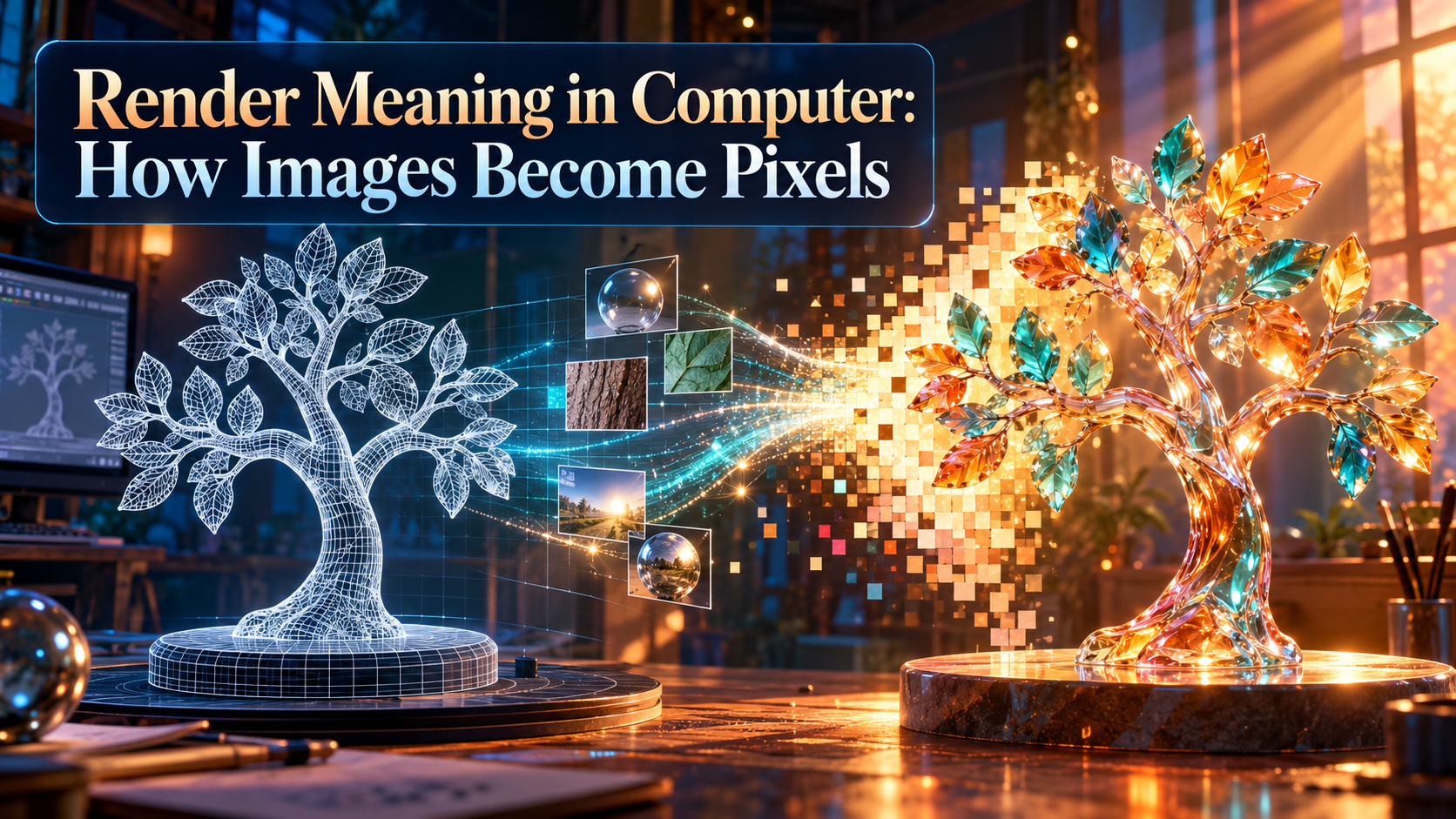
In computer graphics, rendering means generating a viewable image, animation frame, or interface from digital instructions. A renderer converts scene data such as geometry, text, camera position, materials, light, and color into pixels or another displayed result. Rendering can happen in milliseconds for a game frame or over hours for a photorealistic film frame.
Key Facts at a Glance
- Computer rendering converts structured data into pixels, usually for a screen, image file, video frame, or print output.
- A 60 FPS real-time application has approximately 16.6 milliseconds to render each frame.
- Rasterization projects geometric primitives onto pixels quickly, while ray tracing calculates simulated light paths for more realistic illumination.
- Rendering is different from modeling: modeling creates scene objects, while rendering calculates their visible appearance.
- GPU rendering handles many parallel calculations efficiently, but large scenes can exceed available graphics memory, or VRAM.
- Offline rendering trades waiting time for image quality and commonly uses multiple machines in a render farm.
What Does Render Mean in Computer Graphics?
Rendering in computer graphics is the calculation that turns a digital scene or document into a visible result. The input may contain polygons, text, camera coordinates, textures, lighting values, and animation data; the output may be a PNG image, an MP4 frame sequence, a game frame, a web page, or a printed page.
Rendering does not necessarily mean creating a three-dimensional picture. A browser renders HTML and CSS into a page layout, a word processor renders characters and paragraphs into a document page, and a game engine renders a changing 3D scene. The shared idea is transformation from instructions or data into an observable visual output.
Rendering differs from related terms:
| Term | Primary action | Typical output | Common software |
|---|---|---|---|
| Modeling | Creates geometry or scene objects | Vertices, edges, polygons | Blender, Maya, SketchUp |
| Texturing | Assigns surface color and material data | Texture maps, material parameters | Substance 3D Painter, Blender |
| Animation | Changes scene values over time | Keyframes, motion data | Maya, Houdini, Blender |
| Rendering | Calculates the visible result | Pixels, frames, image files | Cycles, Arnold, Unreal Engine |
| Compositing | Combines rendered layers and effects | Finished shot or sequence | Nuke, After Effects, Fusion |
A useful practitioner rule is that rendering answers the question, “What should each output pixel contain?” Modeling answers, “What objects exist?” Confusing the two causes incorrect expectations about software and render time.
How Does a Computer Render an Image?
A computer renders an image by preparing scene data, determining visible surfaces, calculating materials and illumination, converting results into pixels, and applying final image operations. The exact order varies between engines, but the pipeline below describes the major work performed by a typical 3D renderer.
Step 1: Build the Scene
The scene contains geometry, a camera, lights, materials, textures, and world settings. A polygon mesh usually stores vertices, edges, faces, surface normals, and UV coordinates that tell the renderer how a 2D texture maps onto a 3D surface.
The camera supplies position, orientation, focal length, sensor dimensions, and projection type. A 50 mm perspective camera produces a different image from a 24 mm camera even when both occupy the same location, because the field of view changes.
Step 2: Transform and Cull Objects
The renderer transforms object coordinates into camera space and then checks which geometry can affect the image. Frustum culling removes objects outside the camera’s visible volume, while occlusion culling removes geometry hidden behind nearer surfaces.
Culling reduces workload before expensive shading begins. A detailed tree behind a solid building should not consume the same rendering time as a visible foreground character.
Step 3: Determine Visible Surfaces
The renderer tests which surfaces cover each pixel or follows rays from the camera into the scene. Depth buffers, bounding-volume hierarchies, rasterization rules, and ray intersection tests help identify the nearest visible geometry.
Transparent surfaces require additional work because the renderer may need to evaluate several layers rather than only the closest surface. Hair, smoke, glass, foliage, and water are frequent performance trouble spots.
Step 4: Calculate Materials and Lighting
The renderer evaluates material properties such as base color, roughness, metallic response, transmission, emission, and normal direction. Lighting calculations then estimate how direct and indirect light changes the outgoing color.
A matte wall scatters light broadly. A polished metal surface produces sharp reflections. Glass may transmit, refract, reflect, and absorb light, so its appearance requires more calculations than an opaque wall.
Step 5: Convert the Result Into Pixels
Rasterization converts projected triangles into fragments and then pixels. Ray tracing sends rays through image samples and tests their intersections with scene geometry. Path tracing extends that process across multiple indirect light bounces to approximate global illumination.
The renderer usually stores intermediate values in a framebuffer. A pixel can include red, green, blue, and alpha channels, while professional workflows also retain depth, surface normals, motion vectors, and object identifiers as separate render passes.
Step 6: Apply Post-Processing and Save the Output
Post-processing may add anti-aliasing, denoising, motion blur, depth of field, bloom, tone mapping, and color grading. The final output can be a linear or display-referred image, a high-dynamic-range EXR file, a PNG, a JPEG, or a sequence of frames for video encoding.
Color management matters here. A scene rendered in linear light and displayed through an incorrect sRGB conversion can appear too dark, washed out, or oversaturated even when the lighting calculations are correct.
What Are the Main Types of Rendering?
The main rendering categories are real-time, offline, rasterized, ray-traced, CPU-based, and GPU-based rendering. These categories overlap: a modern game may use rasterization with ray-traced reflections, while an offline renderer may use either a CPU or GPU path tracer.
Real-Time Rendering
Real-time rendering generates a new image within a strict frame budget so that a user can interact with the scene. At 30 FPS, the budget is 33.3 milliseconds per frame; at 60 FPS, it is 16.6 milliseconds; at 120 FPS, it is 8.3 milliseconds.
Games, virtual reality, augmented reality, simulators, digital twins, and interactive architectural walkthroughs use real-time rendering. The renderer usually reduces expensive calculations through level-of-detail meshes, baked lighting, temporal reconstruction, culling, and screen-space approximations.
Real-time rendering favors stable latency over maximum physical accuracy. A visually plausible reflection that arrives on time is often more useful in a game than a physically exact reflection that causes stuttering.
Offline Rendering
Offline rendering calculates frames without requiring immediate interaction. A production system may spend minutes, hours, or longer on one image when the project prioritizes detail, complex light transport, motion blur, volumetrics, or high-resolution output.
Film and animation studios distribute frames across render-farm machines. A typical difficult visual-effects frame can take 2-48 hours, although simple shots may finish in seconds and exceptionally complex shots can take longer. The range depends on resolution, samples, geometry, effects, renderer, and hardware.
Rasterization and Ray Tracing Compared
Rasterization is usually faster for interactive scenes, while ray tracing and path tracing generally produce more natural reflections, shadows, and indirect illumination. Neither method is universally superior because the appropriate choice depends on frame time, hardware, image requirements, and scene complexity.
| Rendering method | Core calculation | Typical strength | Typical limitation |
|---|---|---|---|
| Rasterization | Projects triangles into screen fragments | High throughput at 1080p and 1440p | Indirect light often needs approximations |
| Ray tracing | Tests camera and light rays against geometry | Accurate reflections and shadows | High ray and memory cost |
| Path tracing | Samples many indirect light paths | Natural global illumination | Noise and long render times |
| Hybrid rendering | Combines rasterization and selected ray effects | Interactive quality-speed balance | Multiple systems increase tuning complexity |
Rasterization behaves like a highly optimized projection process. It does not literally paint objects in depth order in every implementation, but the painter analogy helps explain why it is efficient. Ray tracing instead asks which objects a ray encounters and how light continues from each intersection.
CPU and GPU Rendering Compared
CPUs provide flexible performance across complicated branching workloads, while GPUs provide high parallel throughput for workloads designed around many similar calculations. GPU rendering can be substantially faster for supported scenes, but GPU memory capacity often limits scene size before raw compute speed becomes relevant.
| Factor | CPU rendering | GPU rendering | Practical consequence |
|---|---|---|---|
| Example engines | Arnold CPU, Corona CPU | Octane, Redshift, Cycles GPU | Check renderer support first |
| Memory | System RAM, often 32-256 GB | VRAM, often 8-48 GB | Large textures may exceed VRAM |
| Strength | Complex scenes and flexible shaders | Parallel samples and repeated calculations | GPU often wins on supported workloads |
| Limitation | Longer frame times for path tracing | Out-of-memory failures | Hardware choice depends on scene size |
| Upgrade path | More cores or dual-socket systems | Faster or additional GPUs | Multi-GPU scaling varies by engine |
A renderer advertised as “10 times faster” does not guarantee a tenfold project improvement. Scene loading, shader compilation, denoising, texture transfer, animation dependencies, and limited VRAM can reduce the observed advantage.
Which Rendering Software Fits Each Project?
The best rendering software depends on the required interaction speed, visual accuracy, asset pipeline, and hardware. Blender gives beginners a low-cost entry point, Unreal Engine and Unity target interactive applications, and tools such as Arnold, RenderMan, Redshift, and Houdini address demanding production workflows.
| User situation | Suitable software | Rendering approach | Important constraint |
|---|---|---|---|
| Beginner 3D artist | Blender with Eevee and Cycles | Real-time preview and path tracing | Learn material and color workflows |
| Architect using CAD assets | Enscape, Twinmotion, Lumion | Interactive visualization | Large imported models need optimization |
| Game developer | Unreal Engine 5 or Unity | Real-time rasterization and ray tracing | Frame-time budget controls quality |
| VFX artist | Maya or Houdini with Arnold, Redshift | Offline and hybrid workflows | Simulation caches can dominate time |
| Product visualizer | Blender, KeyShot, Cinema 4D | Controlled studio rendering | Material accuracy matters more than open-world scale |
Blender is particularly useful for learning because Eevee supplies fast previews and Cycles supplies path tracing in one application. Unreal Engine 5 offers Lumen for dynamic global illumination, but Lumen does not remove every performance constraint; geometry density, reflections, temporal reconstruction, and shader complexity still affect frame rate.
Pixar co-founder Ed Catmull described production graphics as a balance between “the art and the technology.” That balance explains why a technically advanced renderer can produce a worse result when the scene lacks appropriate composition, materials, exposure, or animation timing.
How Long Does Rendering Take?
Rendering time ranges from fractions of a second to more than 48 hours per frame, depending on resolution, samples, geometry, light bounces, effects, and hardware. A useful estimate begins with the time for one test frame, then multiplies by the number of frames and adds storage, retries, compositing, and failed renders.
For animation, the basic calculation is:
Total render time = frame time × frame count ÷ parallel machines
For example, a 10-second animation at 30 FPS contains 300 frames. At 4 minutes per frame on one machine, the raw render time is 1,200 minutes, or 20 hours. Four equally capable machines could reduce the theoretical time to about 5 hours, but file transfer, scheduling, uneven frame complexity, and retries make the actual duration longer.
| Workload | Typical output | Typical frame budget or time | Main bottleneck |
|---|---|---|---|
| Game at 60 FPS | 1920 × 1080 frame | 16.6 ms | GPU or CPU frame time |
| VR application at 90 Hz | Two eye views | 11.1 ms | Stereo workload and latency |
| Product still | 3840 × 2160 image | 30 seconds-30 minutes | Samples and reflections |
| Animated short | 1920 × 1080 frame | 2-60 minutes | Hair, volume, indirect light |
| Complex VFX shot | 2K or 4K frame | 2-48 hours | Simulation, particles, path tracing |
Render time is often controlled by the slowest stage, not the most visible setting. A 4K texture can consume more memory than a moderately complex mesh, while a volumetric effect can dominate a scene that otherwise renders quickly.
How Much Does a Rendering Computer Cost?
A capable rendering workstation typically costs $2,500-$10,000 or more, while a basic learning machine can cost less. The correct budget depends on whether the workload needs GPU acceleration, large VRAM, high CPU core count, quiet operation, or professional reliability.
| Setup | Typical price | Suitable workload | Key specification |
|---|---|---|---|
| Entry-level learning PC | $800-$1,500 | Blender basics, 1080p previews | 16-32 GB RAM, 8 GB VRAM |
| Mid-range workstation | $2,000-$4,000 | Animation, visualization, game development | 32-64 GB RAM, 12-16 GB VRAM |
| Professional GPU workstation | $4,000-$10,000+ | Large scenes and production rendering | 64-128 GB RAM, 24-48 GB VRAM |
| CPU-focused workstation | $3,000-$12,000+ | Heavy CPU engines and simulations | 32-96 CPU cores, 128 GB RAM |
| Cloud render farm | Usage-based | Bursty animation workloads | Per-core-hour or GPU benchmark-hour billing |
Cloud pricing varies by provider, region, renderer, machine type, storage, and discounts. Typical quoted rates may fall around $0.01-$0.05 per CPU GHz-hour or $0.005-$0.03 per GPU benchmark-hour, but those units are not interchangeable, so a project estimate should use the provider’s own scene test.
Buying the most expensive GPU is not always efficient. If a scene exceeds 16 GB of VRAM, a faster 16 GB card can fail while a slower 24 GB card completes the job.
Why Does a Render Look Grainy, Black, or Incorrect?
A grainy render usually has insufficient sampling or difficult indirect lighting, while black or missing areas commonly result from incorrect normals, absent textures, unsupported shaders, exposure errors, or insufficient memory. Diagnosis should begin with a low-resolution test and an isolated lighting or material check.
Use this troubleshooting sequence:
- Check memory: Confirm that geometry and textures fit within available RAM or VRAM. Replace 8K textures with 2K or 4K versions for testing.
- Inspect normals: Recalculate outward-facing normals and verify backface-culling settings. Inward normals can produce black faces or incorrect shading.
- Verify texture paths: Pack or archive assets, use relative paths where appropriate, and confirm that color textures are interpreted as sRGB while data maps use non-color settings.
- Reduce noise: Increase samples gradually, improve light sampling, and test OptiX or OpenImageDenoise. Denoising cannot reliably recover detail from severely undersampled images.
- Check exposure and color management: Compare a neutral material under a known light before changing artistic settings.
- Profile the scene: Disable volumes, displacement, hair, and reflective materials one at a time to identify the dominant cost.
Three practitioner rules prevent many failed renders. Keep working textures at 2K or 4K until final output requires more detail. Test at 25% resolution before committing to a full sequence. Increase samples only after confirming that noise, rather than geometry, is the bottleneck.
What Does Rendering Mean in a Web Browser?
Browser rendering means converting HTML, CSS, images, fonts, and JavaScript-driven layout changes into a document structure and painted page on the screen. The browser parses HTML into the DOM, parses CSS into style information, calculates layout, paints visual elements, and composites layers for display.
Web rendering differs from 3D offline rendering because the browser must respond to interaction, scrolling, resizing, and network changes. Expensive layout recalculation can cause a page to miss the display frame budget, while large images and JavaScript can delay visible content.
Common browser rendering terms include:
- Layout or reflow: Calculating element positions and dimensions.
- Paint: Drawing text, backgrounds, borders, and images.
- Compositing: Combining layers, often with GPU assistance.
- Rasterization: Converting painted vector or layer content into pixels.
- Server-side rendering: Generating HTML on a server before the browser receives it.
- Client-side rendering: Building or updating page content in the browser with JavaScript.
Thus, “render” in computing is broader than “make a 3D image.” The exact inputs and pipeline change, but each use converts structured instructions into a visible result.
When Should You Use Real-Time or Offline Rendering?
Choose real-time rendering when users must interact with the scene and a predictable frame rate matters; choose offline rendering when visual accuracy, complex light transport, or maximum resolution matters more than immediate response. Hybrid workflows use real-time tools for iteration and offline tools for final images.
Choose real-time rendering for:
- Games, simulations, training, and VR.
- Live architectural walkthroughs.
- Interactive product configurators.
- Fast layout and lighting previews.
- Applications requiring 30, 60, or 120 FPS.
Choose offline rendering for:
- Film-quality visual effects.
- High-resolution product stills.
- Complex particles, smoke, hair, and caustics.
- Shots requiring extensive indirect illumination.
- Image sequences that can use render-farm capacity.
Real-time rendering is not automatically low quality, and offline rendering is not automatically photorealistic. A carefully lit real-time scene can outperform a poorly configured path-traced scene, while an offline renderer can produce a stylized image rather than physical realism.
The Bottom Line
The render meaning in computer graphics is the process of turning digital scene or document data into a visible output. A computer can rasterize geometry for speed, trace light for realism, or combine both methods, then apply shading, post-processing, and color management before displaying or saving the result.
For a beginner, Blender provides a practical starting point. For interactive applications, Unreal Engine or Unity supplies real-time pipelines. For demanding visual effects, CPU or GPU renderers such as Arnold, Redshift, Cycles, and RenderMan provide deeper control, but scene complexity, memory capacity, and production time determine the actual result.
Frequently Asked Questions
Is rendering the same as exporting?
Rendering calculates the visual result, while exporting writes that result or project data into a chosen file format. A renderer may create an image in memory, and exporting may then save it as PNG, JPEG, EXR, or a video frame. Some applications combine both actions under a single “Export” command.
Does rendering use the CPU or GPU?
Rendering can use either the CPU, the GPU, or both. CPU rendering usually offers flexible memory and broad compatibility, while GPU rendering accelerates parallel calculations when the engine supports the graphics card. Available VRAM, rather than GPU speed alone, often determines whether a large scene can render successfully.
Why does increasing resolution make rendering slower?
Higher resolution creates more pixels or samples that the renderer must calculate. Doubling both image width and height creates four times as many pixels, although real render time may scale differently because of adaptive sampling, denoising, texture access, and post-processing overhead.
What is a render pass?
A render pass is a separate image channel containing a specific component of the scene, such as diffuse color, reflections, shadows, depth, normals, motion vectors, or object IDs. Compositors combine these passes later, allowing color and effects changes without recalculating every lighting result.
Can a laptop render 3D scenes?
A laptop can render 3D scenes, especially with optimized geometry, moderate texture sizes, and a renderer suited to its hardware. A machine with 16 GB RAM and 8 GB VRAM can support learning and previews, but complex animation, large simulations, and high-resolution path tracing may require a workstation or cloud render farm.
What is the difference between rendering and displaying?
Rendering calculates the image content, while displaying presents the calculated pixels through a screen or other output device. A game engine may render a frame on the GPU, and the monitor then displays that frame at a selected refresh rate. Display hardware cannot correct missing geometry or incorrect lighting calculated during rendering.