
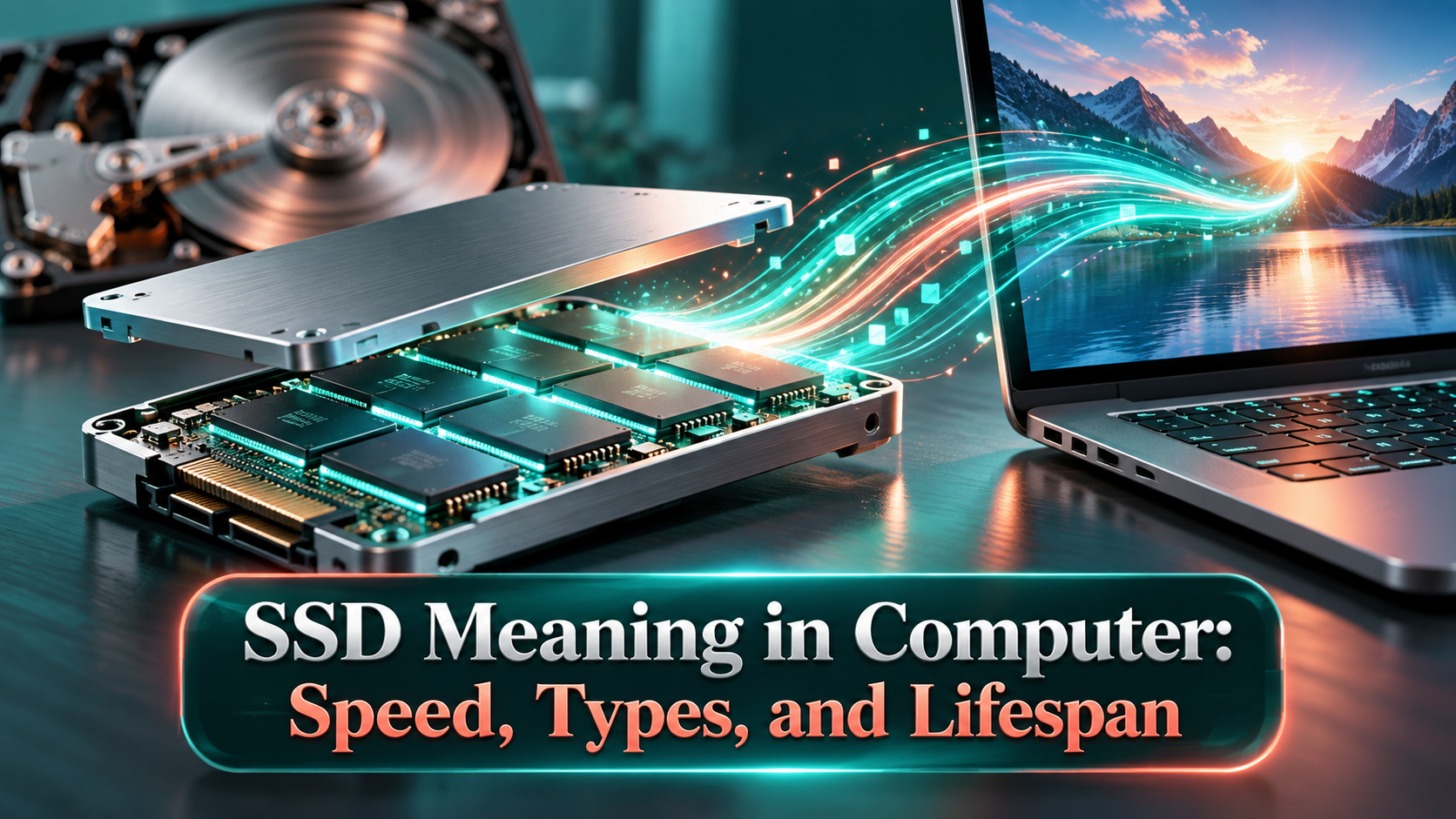
An SSD, or solid-state drive, is a computer storage device that saves data in nonvolatile NAND flash memory rather than on spinning magnetic platters. An SSD has no moving read/write head, so it normally starts computers faster, opens applications sooner, operates silently, and withstands vibration better than a hard disk drive.
Key Facts About SSDs
- SSD means solid-state drive, a storage device based on semiconductor memory.
- NAND flash keeps data without continuous power, but stored data still requires a backup.
- NVMe SSDs communicate over PCI Express and are usually faster than SATA SSDs.
- M.2 identifies a physical shape; M.2 alone does not prove that a drive uses NVMe.
- TLC NAND stores three bits per cell and is the common consumer balance of price and endurance.
- SSD lifespan depends on written data, NAND type, temperature, controller quality, and free space.
What Does SSD Mean in a Computer?
SSD means solid-state drive, and the term identifies a permanent or semi-permanent storage device for the operating system, applications, documents, photos, games, and other files. “Solid-state” means the drive stores information electronically in semiconductor memory instead of using moving mechanical parts.
A desktop or laptop can use an SSD as its boot drive, secondary internal storage, external USB drive, or scratch disk for temporary project files. SSDs are also installed in game consoles, servers, cameras, network appliances, and data centers.
The name describes the storage technology, not a particular speed. A 2.5-inch SATA SSD and a PCIe 5.0 NVMe SSD are both solid-state drives, but their connectors, protocols, bandwidth, heat output, and performance differ substantially.
What does nonvolatile storage mean?
Nonvolatile storage retains data after the computer shuts down. NAND flash accomplishes this by storing electrical charge in memory cells whose programmed states represent data.
The cell mapping is more complex than a universal “trapped electrons equal zero” rule. Controllers interpret voltage thresholds, error-correction information, and logical-to-physical mappings; the exact bit pattern depends on the NAND design and controller firmware.
How Does an SSD Work?
An SSD receives a read or write command from the operating system, translates the logical address through its controller, and accesses NAND flash pages inside larger erase blocks. The controller also manages error correction, wear leveling, garbage collection, bad-block replacement, and the drive’s cache.
A typical write follows this sequence:
- The operating system sends data to the SSD.
- The controller places the logical address in its flash translation layer.
- The controller programs charge levels in NAND cells.
- Error-correction metadata is stored with the data.
- The controller later moves or consolidates data during garbage collection.
- The operating system reads the logical address, while the controller finds the physical NAND location.
NAND flash is usually written in pages but erased in blocks. That mismatch explains why an SSD cannot simply overwrite every old byte in place. The controller writes new data elsewhere, marks the old page invalid, and eventually erases a complete block.
What are the SSD controller and DRAM for?
The SSD controller is the drive’s processor. It coordinates NAND channels, error correction, encryption, caching, thermal behavior, and wear distribution.
Some SSDs include dedicated DRAM for the flash translation layer. DRAM-less models can use Host Memory Buffer, or HMB, to borrow a small amount of system memory over PCIe. DRAM-less drives can be appropriate for ordinary client workloads, while sustained writes, heavy multitasking, and workstation workloads benefit from stronger controllers and cache designs.
SSD Types: Form Factor Versus Interface
SSD buyers often confuse physical form factor with communication interface. A form factor describes the drive’s shape and connector; an interface or protocol describes how the drive communicates with the computer.
| SSD type | Physical format | Interface or protocol | Typical sequential speed | Common use |
|---|---|---|---|---|
| 2.5-inch SATA | 2.5-inch enclosure | SATA III, AHCI | 450-560 MB/s | Older laptops and desktops |
| M.2 SATA | M.2 card, usually B or B+M key | SATA III, AHCI | 450-560 MB/s | Compatible thin laptops |
| M.2 NVMe PCIe 3.0 | M.2 2280 card | PCIe 3.0 x4, NVMe | 2,000-3,500 MB/s | Older gaming PCs |
| M.2 NVMe PCIe 4.0 | M.2 2280 card | PCIe 4.0 x4, NVMe | 5,000-7,500 MB/s | Current desktops and laptops |
| M.2 NVMe PCIe 5.0 | M.2 2280 card | PCIe 5.0 x4, NVMe | 10,000-14,000+ MB/s | High-end workstations |
| External USB SSD | Portable enclosure | USB 3.2 or USB4 | 400-3,800 MB/s | Transfers and backups |
The values are typical interface or product ranges, not guaranteed everyday results. A PCIe 4.0 SSD installed in a PCIe 3.0 computer normally operates at the older link’s limits.
Is M.2 the same as NVMe?
No. M.2 is a physical form factor, while NVMe is a storage protocol designed for PCI Express. An M.2 slot may support SATA, NVMe, both, or neither, depending on the computer.
Before buying, check the computer or motherboard manual for supported keying, card length, interface, PCIe generation, and thermal clearance. A 2280 drive is 22 millimeters wide and 80 millimeters long, but compact laptops may require 2230 or 2242 drives.
NAND Flash Cell Types
NAND cell type determines how many bits each cell stores. More bits increase capacity per chip, but voltage levels become more difficult to distinguish and sustained-write endurance generally decreases.
| NAND type | Bits per cell | Typical consumer role | Relative endurance | Main trade-off |
|---|---|---|---|---|
| SLC | 1 | Enterprise cache and specialized systems | Highest | Very high cost per GB |
| MLC | 2 | Premium or older professional SSDs | High | Limited consumer availability |
| TLC | 3 | Mainstream laptops, desktops, gaming | Medium to high | Strong balance of cost and performance |
| QLC | 4 | Affordable high-capacity consumer drives | Lower | Slower sustained writes and lower endurance |
| PLC | 5 | Emerging, limited deployment | Lower than QLC | Greater density and engineering complexity |
Consumer SSDs often use a faster pseudo-SLC cache. A QLC drive may write quickly while that cache has free space, then slow sharply during a large transfer after the cache is exhausted. A TLC drive can also slow after its cache fills, so NAND type alone does not determine sustained performance.
SSD Performance: What Do the Numbers Mean?
SSD sequential read and write speed measures large, continuous transfers, such as copying a video file. Random performance and latency matter more for booting an operating system, launching applications, and handling many small files.
| Metric | What it measures | Typical value | Why it matters |
|---|---|---|---|
| SATA sequential read | Large-file reading over SATA III | 450-560 MB/s | Sets the ceiling for SATA models |
| PCIe 3.0 NVMe read | Large-file reading over PCIe 3.0 | 2,000-3,500 MB/s | Useful for general upgrades |
| PCIe 4.0 NVMe read | Large-file reading over PCIe 4.0 | 5,000-7,500 MB/s | Helps large transfers and demanding applications |
| Random IOPS | Small input/output operations | 400,000-1,500,000 IOPS | Indicates multitasking responsiveness |
| Access latency | Time to begin an operation | Usually tens of microseconds | Affects small-file responsiveness |
| Sustained write | Long transfer after cache exhaustion | Product-specific | Important for video and project files |
A faster specification does not guarantee a proportionally faster desktop. Application startup, CPU processing, memory capacity, file size, queue depth, and software optimization can limit the benefit. PCIe 5.0 models often produce more heat than PCIe 3.0 or 4.0 drives, so a heatsink and adequate airflow may be necessary.
SSD Versus HDD: Which Is Better?
An SSD is the better primary drive for most modern computers because it offers much lower access latency, silent operation, and better resistance to vibration. An HDD remains attractive for inexpensive bulk storage, local archives, surveillance footage, and backups where capacity per dollar matters more than responsiveness.
| Attribute | SATA or NVMe SSD | Hard disk drive | Practical consequence |
|---|---|---|---|
| Moving parts | None | Platters and actuator arm | SSD tolerates vibration better |
| Sequential speed | 450-14,000+ MB/s | About 80-200 MB/s | SSD transfers large files faster |
| Random access | Tens of microseconds | About 5-15 milliseconds | SSD launches software faster |
| Noise | Silent | Audible motor and head movement | SSD suits quiet workspaces |
| Power use | Usually 1-8 watts active | Usually 5-10 watts active | SSD often benefits laptops |
| Cost per terabyte | Higher | Lower | HDD suits large archives |
| Failure behavior | Can stop abruptly | May show mechanical symptoms | Both require independent backups |
| Recovery prospects | Often difficult after controller failure | Sometimes recoverable by specialists | Neither replaces backup software |
SSD shock resistance does not make a laptop indestructible. A drop can damage the motherboard, connector, or enclosure even if the NAND survives. SSDs also do not provide protection against deletion, ransomware, fire, theft, or a defective power supply.
How Much SSD Storage Do You Need?
Capacity depends on the operating system, applications, media library, and free-space target. A 500GB SSD suits a basic office computer, while 1TB is the practical starting point for many general-purpose PCs and gaming systems.
| User scenario | Sensible capacity | Typical use | Free-space target |
|---|---|---|---|
| Office and web browsing | 500GB | Windows, applications, documents | Keep 50GB or more free |
| General laptop | 1TB | Work files, photos, applications | Keep 10-20% free |
| Gaming computer | 1-2TB | Operating system and large games | Keep 150-250GB free |
| Video editing | 2-4TB | Projects, cache, exports | Keep 20% free |
| Photo or media archive | 4TB or more | Large libraries and working files | Use a separate backup |
Keeping an SSD completely full can reduce write performance because the controller has fewer clean blocks available for efficient garbage collection. The 90% threshold is a useful warning, not a universal failure point. Workload, overprovisioning, controller design, and NAND type change the effect.
How Long Does an SSD Last?
A modern consumer SSD commonly lasts seven to ten years under ordinary use, but calendar age alone cannot predict failure. NAND wear, written data, heat, firmware quality, power events, and retention conditions all influence service life.
TBW, or terabytes written, is the manufacturer’s endurance rating. A 1TB drive rated at 600 TBW is specified to withstand 600 terabytes of host writes under the warranty’s conditions; it is not a promise that the drive dies at 600TB, nor a guarantee that it cannot fail earlier.
For example, writing 50GB per day equals about 18.25TB per year. At that workload, a 600TBW rating represents roughly 32.9 years of writes mathematically, although warranty duration, data retention, controller failure, and product aging make that calculation unsuitable as a lifetime guarantee.
Temperature also matters. NAND retains data less reliably at elevated temperatures, while controllers may throttle performance to reduce heat. Monitoring tools such as CrystalDiskInfo on Windows and smartctl on Linux can report health attributes, temperature, power-on hours, and host writes.
Should You Buy SATA or NVMe?
Choose SATA when upgrading an older computer, replacing a 2.5-inch hard drive, or adding inexpensive storage to a system without a compatible NVMe slot. Choose NVMe when the motherboard supports PCIe storage and you regularly transfer large files, compile software, edit video, or want the simplest high-performance internal drive.
For normal office work, both SATA and NVMe SSDs feel dramatically faster than an HDD. NVMe becomes more valuable with large sequential transfers and demanding workloads, while the operating system alone may not feel several times faster despite the benchmark difference.
A practical buying hierarchy is:
- Confirm the connector and supported interface.
- Select capacity before chasing peak benchmark speed.
- Prefer TLC for frequent sustained writes when the price difference is reasonable.
- Compare TBW, warranty length, sustained-write behavior, and temperature.
- Check independent reviews for the exact model, not only the brand.
- Reserve budget for a backup drive or cloud backup.
What Are SSDs Not Good For?
SSDs are not ideal as the only copy of irreplaceable data. A failed controller, damaged firmware, electrical event, or NAND problem can make an SSD inaccessible without warning, and encrypted or controller-dependent data recovery may be expensive or impossible.
SSDs are also inefficient for very large cold archives when an HDD provides substantially more capacity per dollar. Write-intensive scratch workloads, such as continuous surveillance recording or repeated professional cache generation, require an endurance-focused model rather than the cheapest high-capacity QLC drive.
A practitioner rule is simple: use an SSD for active data and an HDD, NAS, or cloud service for an independent backup. RAID can improve availability, but RAID is not a backup because accidental deletion and ransomware can replicate across the array.
How Do You Maintain an SSD?
Modern operating systems normally send TRIM commands, which tell the SSD which logical blocks no longer contain useful data. TRIM helps future garbage collection, but it does not create a recoverable backup and should not be treated as secure erasure.
Use these maintenance practices:
- Leave approximately 10-20% free space for normal consumer workloads.
- Allow Windows, macOS, or Linux to manage TRIM and scheduled optimization.
- Avoid routine third-party defragmentation of SSD volumes.
- Install firmware updates after checking the vendor’s release notes.
- Keep laptop and desktop cooling paths clear.
- Monitor health attributes and temperature periodically.
- Shut down safely and use surge protection for desktop systems.
- Encrypt portable SSDs when loss or theft is a realistic risk.
Traditional defragmentation is designed for mechanical seek reduction and usually provides little benefit to an SSD. Operating-system optimization may display the word “defragment,” but modern systems distinguish between HDD defragmentation and SSD retrimming.
Why Is an SSD Slow or Missing?
An SSD that is missing may be uninitialized, improperly connected, disabled in firmware, incompatible with the slot, or experiencing a hardware failure. An SSD that is slower than advertised may be thermally throttled, operating over a narrower PCIe link, writing beyond its cache, or being tested with a different workload than the manufacturer’s benchmark.
For a new internal drive, check the following in order:
- Confirm that BIOS or UEFI detects the device.
- Verify the M.2 drive is fully inserted and secured.
- Check whether the slot supports SATA, NVMe, or both.
- Inspect Disk Management in Windows or Disks in Linux.
- Initialize and format an unallocated new drive only when it contains no needed data.
- Assign a drive letter if Windows recognizes the volume without one.
- Check PCIe generation, lane sharing, firmware, and thermal readings.
- Test a different cable, slot, enclosure, or computer when appropriate.
Do not initialize, format, or run repair commands on a drive containing important files until the data is safely copied or assessed by a recovery professional. Write operations can reduce recovery options.
How Much Do SSDs Cost?
Typical retail pricing varies by region, promotions, NAND supply, capacity, and interface. In the United States, a 500GB SATA or entry-level NVMe SSD often costs about $35-$60, a mainstream 1TB TLC NVMe drive about $60-$110, and a 2TB performance NVMe drive about $120-$250.
Premium PCIe 5.0 models can cost more and may require a motherboard heatsink or aftermarket cooler. Price per gigabyte usually falls at larger capacities, but the cheapest model can have lower endurance, no dedicated DRAM, weaker sustained writes, or a shorter warranty.
Treat current prices as shopping ranges rather than permanent specifications. Compare the exact model’s warranty, TBW, NAND type, controller, and post-cache write speed before choosing the lowest price.
Frequently Asked Questions
Can an SSD improve an old computer?
Yes. Replacing an old HDD with a SATA SSD often produces the most noticeable upgrade for an older laptop or desktop. Boot time, application launches, searches, and file operations improve because SSD access latency is far lower than mechanical disk latency. More RAM or a newer processor may still be necessary for demanding software.
Is a 1TB SSD enough for gaming?
A 1TB SSD is enough for the operating system, applications, and a moderate game library, but current games can occupy 50-200GB each. A 2TB model reduces frequent uninstalling and leaves room for updates. Capacity matters more than PCIe 5.0 speed for most game loading, provided the computer supports the selected drive.
Can I clone my HDD to an SSD?
Yes. Disk-cloning software can copy an operating system and applications from an HDD to an SSD, provided the destination has enough usable capacity and the partition layout is compatible. After cloning, change the boot order in BIOS or UEFI, verify the SSD starts correctly, and keep the original drive untouched until the migration is confirmed.
Can an SSD lose data when unplugged?
An SSD can eventually lose stored data while unpowered, especially after long storage, high-temperature exposure, or cell wear. Consumer SSDs are designed for normal powered operation, not indefinite archival storage. Maintain at least one current backup on a separate device or service and periodically verify important files.
Are external SSDs faster than USB flash drives?
An external SSD is usually faster and more consistent than a basic USB flash drive because it uses a stronger controller, better flash management, and often a faster USB interface. Actual speed is limited by the enclosure, cable, host port, thermal conditions, and the drive’s sustained-write behavior.
Should you buy an SSD for a computer?
For the query SSD meaning in computer, the practical conclusion is that an SSD is the preferred primary storage device for most current computers. Choose a compatible SATA model for older systems, an NVMe model for supported PCIe systems, adequate capacity before peak speed, and an independent backup because no SSD protects data by itself.