
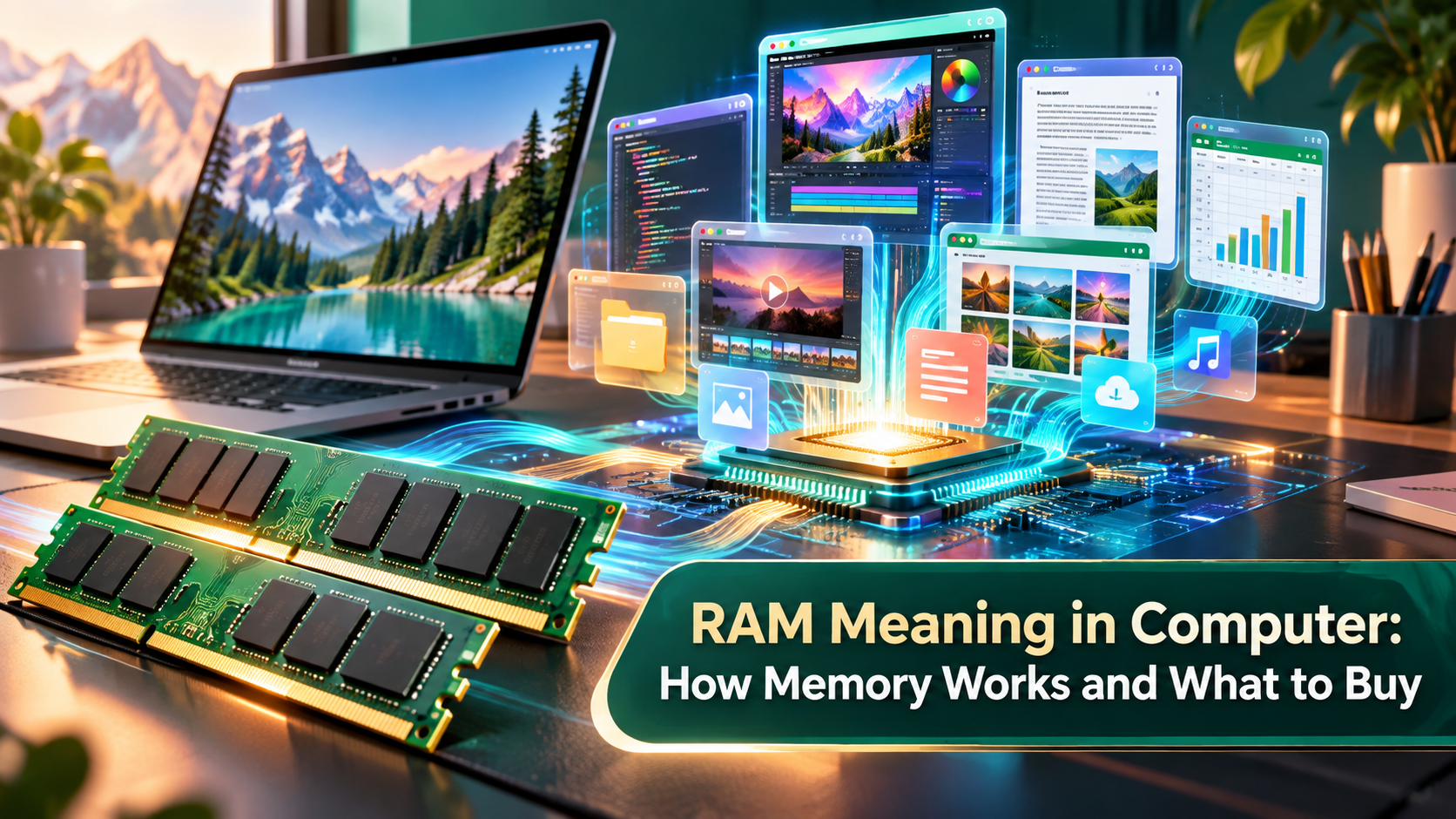
RAM means Random Access Memory, a computer’s fast, temporary working memory for the operating system, applications, and active data. The processor reads and writes information in RAM far faster than it can use an SSD or hard drive, but RAM loses its contents when power is removed. Capacity affects how many tasks fit comfortably, while speed and latency affect transfer performance.
Key Facts at a Glance
- RAM is volatile memory, so its contents disappear after shutdown or power loss.
- The operating system loads active programs and data from storage into RAM for faster CPU access.
- “Random access” means the memory controller can address locations directly rather than reading every location in sequence.
- 16GB is a practical baseline for general computing in 2026, while 32GB suits modern gaming and demanding multitasking.
- DDR4 and DDR5 use different electrical signaling and motherboard slots, so they cannot operate together.
- A computer with insufficient RAM may use virtual memory on an SSD, which is slower than physical RAM.
What Does RAM Mean in a Computer?
Random Access Memory is the temporary data area that a computer uses while software is running. When a user opens a browser, game, spreadsheet, or video editor, the operating system copies required program code and working data from permanent storage into RAM.
RAM does not permanently store documents, applications, or photographs. Those files remain on an SSD, hard drive, or other storage device, while RAM holds the portions currently needed by the CPU. The distinction explains why a computer can retain files after shutdown but cannot retain an unsaved document that existed only in memory.
The word “random” describes address access, not randomness. Each memory location has an address, and the memory controller can select a requested address without scanning all earlier locations. RAM is still governed by timing, electrical signaling, and queueing, so “instant” means direct and very fast, not literally zero-time access.
RAM Versus Storage, ROM, and Cache
RAM, storage, read-only memory, and CPU cache are different memory technologies with different jobs. RAM is the general-purpose working area, storage retains files without power, ROM or firmware memory starts hardware, and cache keeps smaller data sets close to the processor.
| Component | Retains data without power? | Typical capacity | Primary job |
|---|---|---|---|
| CPU L1 cache | No | 32KB-1MB per core | Immediate instruction and data access |
| CPU L3 cache | No | 4MB-128MB | Reduce trips to system memory |
| System RAM | No | 8GB-128GB in consumer PCs | Hold active programs and data |
| NVMe SSD | Yes | 512GB-8TB | Store files and applications |
| HDD | Yes | 1TB-20TB | Lower-cost bulk storage |
| Firmware ROM or flash | Yes | 16MB-256MB | Store UEFI and hardware startup code |
A larger SSD does not compensate fully for insufficient RAM. Storage can provide virtual memory, but an SSD has much higher access latency and lower random-workload responsiveness than DRAM.
How Does RAM Work?
RAM works by placing active instructions and data near the CPU, where the memory controller can retrieve them through a high-bandwidth connection. The normal path is storage to RAM, RAM to CPU cache, CPU execution, and then writes back to RAM or storage.
The sequence usually follows these steps:
- The operating system requests a program from an SSD or hard drive.
- The storage controller transfers executable code and required data into system RAM.
- The CPU accesses frequently used portions through its L1, L2, and L3 caches.
- The memory controller retrieves additional data from RAM when the cache misses.
- Modified data remains in RAM until the application saves it or the operating system writes it elsewhere.
- Shutdown clears volatile RAM, while saved files remain on permanent storage.
Modern computers use dynamic RAM cells that require periodic refreshing. A DRAM module therefore consumes power even when software is not actively changing every stored bit. Removing power stops the refresh process, and the electrical state that represented the data disappears.
Why Does RAM Improve Computer Speed?
RAM improves responsiveness because DRAM has much lower access latency and substantially higher bandwidth than consumer storage. The benefit appears when applications repeatedly reuse active data, such as browser tabs, game assets, project files, or virtual-machine memory.
RAM does not make every CPU calculation faster. If a computer already has enough memory, adding more capacity may produce little change, while a faster processor, graphics card, or SSD could matter more. Extra RAM helps most when the operating system is compressing memory, closing background programs, or paging data to storage.
What Are the Main Types of RAM?
The main categories relevant to personal computers are DDR4 SDRAM, DDR5 SDRAM, LPDDR memory, and ECC memory. Their physical design, power behavior, error handling, and upgradeability differ, so the correct choice depends on the motherboard or device rather than the module’s advertised speed alone.
DDR4 and DDR5
DDR means Double Data Rate, because the module transfers data on two clock edges per cycle. DDR5 is the newer desktop and laptop standard, but DDR5 is not a universal replacement module for DDR4 because the motherboard’s memory controller and slot wiring must support the same generation.
| Attribute | DDR4 SDRAM | DDR5 SDRAM |
|---|---|---|
| JEDEC starting data rate | 1600 MT/s | 3200 MT/s |
| Common desktop baseline | 2133-3200 MT/s | 4800-5600 MT/s |
| Typical enthusiast range | 3200-4000 MT/s | 6000-8000+ MT/s |
| Module voltage | 1.20V | 1.10V |
| Desktop pin count | 288 pins | 288 pins |
| On-module power management | Usually motherboard-managed | PMIC on module |
| Typical consumer module capacity | 4GB-32GB | 8GB-64GB or higher |
| Physical compatibility | DDR4 slot only | DDR5 slot only |
The “MHz” label on retail packaging often describes an effective transfer rate in MT/s rather than the underlying memory clock. A DDR5-6000 kit transfers 6000 million data operations per second, while its base clock is lower.
DDR5 can provide more bandwidth and higher module density. DDR4 may still deliver strong value in an existing system because replacing a motherboard and processor solely for memory generation rarely makes financial sense.
LPDDR4X and LPDDR5X
LPDDR means Low-Power Double Data Rate memory. LPDDR4X and LPDDR5X reduce energy use through lower-voltage operation and power-saving states, making them common in phones, tablets, ultrabooks, and thin laptops.
LPDDR is often soldered directly to the motherboard. That arrangement reduces socket space and electrical distance but usually prevents the owner from replacing or expanding the memory later. A laptop listing that says “16GB LPDDR5X” may therefore describe a fixed configuration rather than an upgradeable module.
ECC, Unbuffered, and Registered Memory
ECC memory detects and corrects certain bit errors, improving reliability in servers, scientific systems, and professional workstations. Standard desktop memory generally lacks full error-correcting capability, although DDR5 includes on-die ECC that corrects some internal chip errors and does not provide the same system-level protection as conventional ECC DIMMs.
Registered or buffered RAM places a register between memory chips and the memory controller. Servers use it to support larger capacities and heavier electrical loads, but ordinary consumer motherboards commonly require unbuffered memory. ECC, registered status, capacity, and speed must all match the platform.
Which RAM Specifications Matter Most?
Capacity matters first, bandwidth matters second, and latency matters third for most buyers. A computer with too little RAM can become slow regardless of memory speed, while a system with sufficient capacity may gain only modest real-world benefit from premium timings.
Capacity
Capacity is the amount of data the installed RAM can hold at one time. Windows, macOS, Linux, applications, browser tabs, game assets, and integrated graphics can all consume that space.
| Workload | Practical capacity | Typical system behavior |
|---|---|---|
| Basic documents and email | 8GB | Usable, but limited with many tabs |
| Office, browsing, and media | 16GB | Comfortable for common multitasking |
| Modern gaming and streaming | 32GB | Strong headroom for games and background apps |
| Photo work and software development | 32GB-64GB | Depends on project size and tools |
| 4K video editing and large datasets | 64GB-128GB | Reduces paging during heavy projects |
| Virtual machines and 8K workflows | 128GB or more | Requires a compatible workstation platform |
Integrated graphics reserve part of system RAM as video memory. A laptop with 16GB installed may expose less than 16GB to applications because the graphics processor has claimed a portion.
Speed and Bandwidth
Memory speed determines how much data can move over the memory bus during a given period. Dual-channel operation increases the available bus width by using two matched channels, although the actual improvement varies by workload.
For example, two DDR4-3200 modules in a dual-channel configuration provide a theoretical 51.2GB/s of aggregate bandwidth on a 128-bit channel arrangement, before protocol and platform overhead. One DDR4-3200 module provides roughly half that theoretical channel bandwidth.
Bandwidth matters more for integrated graphics, large data transfers, compression, and some games. CPU-limited office work often shows little difference between sensible mainstream speeds.
CAS Latency
CAS latency, abbreviated CL, is the number of memory clock cycles between a read command and the beginning of returned data. A lower CL is helpful at the same data rate, but comparing CL numbers across different speeds can mislead.
Approximate first-word latency can be estimated as:
Latency in nanoseconds = CL × 2000 ÷ data rate in MT/s
Using that formula, DDR4-3200 CL16 is approximately 10 nanoseconds, while DDR5-6000 CL30 is also approximately 10 nanoseconds. DDR5 still supplies much greater bandwidth, so the higher generation is not defined only by its CL number.
How Much RAM Does a Computer Need?
Most general-purpose computers should have 16GB, gaming systems usually benefit from 32GB, and creative workstations commonly need 64GB or more. The correct capacity depends on simultaneous workload, project size, operating system, and whether integrated graphics shares system memory.
Everyday Computers
A 16GB configuration suits web browsing, Microsoft 365, video playback, schoolwork, accounting software, and ordinary photo management. An 8GB system can remain functional for email and light documents, but dozens of browser tabs, video meetings, and large spreadsheets may push it into paging.
Gaming PCs
A modern gaming PC should generally use 32GB, especially when the user streams, records gameplay, runs Discord, or keeps a browser open. A 16GB system may run many games, but newer releases and background applications can increase stutter when available memory becomes scarce.
The graphics card’s dedicated VRAM is separate from system RAM. If a game exceeds the graphics card’s VRAM, the system may move assets through slower pathways, and adding system RAM does not fully solve a GPU memory limit.
Creative and Technical Workstations
Video editing, 3D rendering, software compilation, data analysis, and virtual machines can justify 64GB-128GB. A 4K editing timeline with effects, preview files, a browser, and an encoding process can consume far more memory than a single office application.
More capacity is valuable only when software can use it. A workstation with 128GB may show little gain in a light workload, whereas a developer running several virtual machines can experience a major improvement.
Is DDR5 Better Than DDR4?
DDR5 is better for a new compatible platform when the price and motherboard cost are acceptable, because it offers higher bandwidth, larger module capacities, and a lower nominal voltage. DDR4 is usually the better upgrade for an existing DDR4 computer because DDR4 and DDR5 cannot share a motherboard or operate in the same slots.
The generation choice involves more than the module price. A DDR5 upgrade may require a new motherboard and processor, while an existing DDR4 platform may need only a matched kit. A complete platform change makes sense when the CPU, storage, graphics card, and workload also justify the expense.
DDR4 and DDR5 Compatibility Rules
- DDR4 and DDR5 notches are positioned differently.
- DDR4 modules cannot fit correctly in DDR5 sockets.
- A motherboard supports one generation, not both in normal consumer designs.
- The processor’s integrated memory controller must support the chosen generation.
- Desktop DIMMs and laptop SO-DIMMs have different physical formats.
- Soldered LPDDR cannot be replaced with a standard desktop DIMM.
How Should You Upgrade RAM?
A safe RAM upgrade begins with the motherboard manual, not the retail package. Confirm the supported generation, form factor, maximum capacity, slot population, and qualified speeds before purchasing modules.
Use this checklist:
- Identify the motherboard or laptop model in Windows System Information, the BIOS, or the manufacturer’s support page.
- Check whether the system uses DDR4, DDR5, SO-DIMM, DIMM, or soldered LPDDR.
- Record the installed module capacity, speed, rank information, and number of occupied slots.
- Buy a matched kit, such as 2x8GB or 2x16GB, rather than combining unrelated modules.
- Shut down, disconnect power, and discharge residual electricity before opening a desktop case.
- Install modules in the motherboard’s recommended paired slots, commonly A2 and B2.
- Enter UEFI firmware and verify the total capacity and memory speed.
- Enable Intel XMP or AMD EXPO only after confirming the system boots at its default profile.
- Run a memory test before treating the upgrade as complete.
A new kit should be installed firmly until the retaining clips lock. If the computer fails to post, return to default settings and test one module at a time.
Why Is a Computer Using So Much RAM?
High RAM usage is not automatically a fault because operating systems use unused memory for file caching and release that space when applications request it. A problem exists when applications slow down, the system pages heavily, or task managers show a persistent process consuming abnormal memory.
Windows Task Manager, macOS Activity Monitor, and Linux tools such as free and top can identify memory pressure. Check the application name, private memory, commit usage, and whether consumption grows continuously over time.
Virtual memory uses an SSD or hard drive as an overflow area. It preserves stability when physical RAM fills, but page faults can cause delays because storage is much slower than DRAM. A pagefile should normally remain enabled unless a specific diagnostic procedure requires otherwise.
Why Can New RAM Cause Crashes or No Boot?
New RAM can cause crashes when the modules are incompatible, poorly seated, overclocked beyond the platform’s stable limit, or mixed with another kit that has different memory characteristics. Continuous beeping, a black screen, application crashes, and blue screens can all result from memory initialization failure or instability.
Troubleshoot in this order:
- Turn off XMP or EXPO and test the manufacturer’s safe default speed.
- Power down and reseat every module until the latches close completely.
- Test one module in the motherboard’s recommended primary slot.
- Repeat with the second module and then test the paired configuration.
- Update the motherboard firmware if the manufacturer lists improved memory compatibility.
- Run Windows Memory Diagnostic or a bootable test such as MemTest86.
- Replace the module that repeatedly fails alone in a known-good slot.
Do not clean gold contacts with abrasive material or liquid. If cleaning is necessary, use manufacturer-approved handling practices and avoid damaging the contact plating.
Common RAM Mistakes to Avoid
- Buying capacity without checking the platform limit: A motherboard may support fewer gigabytes than the modules advertise.
- Confusing MHz with total performance: Speed, timing, channel configuration, CPU architecture, and workload all affect results.
- Using one module when two are available: Single-channel operation can reduce bandwidth, especially with integrated graphics.
- Mixing kits because the labels match: Equal capacity and speed do not guarantee identical memory chips or stable timings.
- Treating DDR5 on-die ECC as full ECC memory: Internal chip correction does not provide complete system-level error correction.
- Enabling an aggressive profile immediately: XMP and EXPO are performance profiles, not universal guarantees across every CPU and motherboard combination.
One practitioner rule is simple: prioritize enough capacity, then use a matched dual-channel kit, then consider speed and latency. A stable 32GB system is more useful than an unstable 16GB kit with a higher label.
RAM Meaning in Computer: The Bottom Line
RAM means Random Access Memory, the volatile working area that holds active software and data close to the CPU. Choose 16GB for ordinary computing, 32GB for gaming and serious multitasking, and 64GB or more for demanding creative, development, and virtual-machine workloads. Match DDR generation, form factor, capacity limit, and motherboard support before comparing speed or latency.
Frequently Asked Questions
Is RAM the same as memory?
RAM is one type of computer memory, but “memory” can also describe CPU cache, ROM, firmware flash, or storage in casual conversation. In technical PC specifications, system memory usually means volatile DRAM installed in DIMM or SO-DIMM modules.
Does more RAM make a computer faster?
More RAM makes a computer faster when the existing capacity is insufficient and the operating system is paging to storage. If the workload already fits comfortably, increasing capacity may produce little measurable improvement, and a faster CPU, SSD, or graphics processor may be the better upgrade.
Can I mix two different RAM brands?
Different brands can work together when their generation, voltage, capacity, form factor, and timings are compatible, but mixed kits have a higher risk of instability. A matched kit tested by its manufacturer is the safer choice, particularly when enabling XMP or EXPO.
How long does RAM last?
RAM commonly remains usable for the full life of a computer, often 5-10 years or longer, because it has no mechanical wear mechanism. Replacement usually follows a capacity, compatibility, or platform upgrade rather than gradual performance degradation.
Is RAM important for integrated graphics?
RAM is especially important for integrated graphics because the graphics processor uses part of system memory instead of dedicated VRAM. Dual-channel memory and adequate bandwidth can improve integrated-graphics performance, while insufficient capacity leaves less memory for applications.
Should I buy 32GB or 64GB?
Buy 32GB for gaming, general development, streaming, and demanding multitasking. Choose 64GB when editing large 4K projects, running several virtual machines, compiling large codebases, using professional 3D tools, or keeping many memory-heavy applications open simultaneously.